Choosing a hardware wallet starts with the crypto you use and the way you want to manage it. Your phone or computer displays your accounts, while a separate physical device signs the transactions you approve.
Some wallets work with a tap against your phone; others use a cable or QR codes and a dedicated screen. These differences shape everyday use, from checking a transfer to organizing your backup.
This guide compares seven options for 2026, covering their main models, supported networks, companion apps and security features. You'll learn what each setup involves and what to check before choosing your first device.
What is a hardware wallet?
A hardware wallet is a physical device that manages the keys used to authorize crypto transactions. Your coins and tokens remain recorded on their blockchains. A compatible app displays your balances and prepares transactions for the hardware to sign.
For example, you can prepare a SOL transfer in an app, check the details through the wallet's supported interface, then use the device or card to approve it. The app sends the signed transaction to the blockchain.
A hot wallet uses signing keys available to an app on a connected phone or computer. A hardware wallet uses dedicated physical signing equipment. Cold storage means keeping signing keys offline. An air-gapped signing process exchanges data without a direct network or cable connection, commonly through QR codes.
NFC lets a card or ring communicate with a compatible phone when you hold them close together.
For an overview of software and hardware options, explore our crypto wallet comparison.
Key takeaways
For mobile use: Tangem and Arculus use a card that you tap against a compatible smartphone.
For QR signing: SafePal S1 and Keycard Shell combine a camera with an on-device confirmation screen.
For a touchscreen experience: Trezor Safe 5, Passport Prime and GridPlus Lattice1 offer dedicated interfaces for reviewing actions.
Start with compatibility: match the exact cryptocurrency, network and wallet application to your intended use.
Choose your backup during setup: recovery words, additional cards and supported backup shares provide different ways to organize access.
Compare the seven hardware wallet solutions at a glance
The selection covers several ways to use a physical wallet, from mobile cards to desktop signing devices. Product ranges and compatibility were checked against manufacturer documentation on October 19, 2026. The network examples below refer to the models and configurations described in each section.
Solution and models | Connection and confirmation | Network examples | Apps and interfaces |
|---|---|---|---|
SafePal: S1, S1 Pro, X1 | QR codes on S1/S1 Pro; Bluetooth on X1; device screen | Bitcoin, Ethereum, Solana and other supported networks | SafePal app for iOS/Android and browser extension |
Tangem: Wallet cards, Ring | NFC with a compatible smartphone | Bitcoin, Ethereum, Solana and other supported networks | Tangem app for iOS and Android |
Trezor: Safe 3, Safe 5, Safe 7 | USB-C; Safe 7 also offers Bluetooth; on-device confirmation | Bitcoin, Ethereum, Solana with universal firmware | Trezor Suite on desktop and Android; Safe 7 also signs with iOS |
Keycard and Keycard Shell | NFC with Keycard; screen and QR codes with Shell | Bitcoin, Ethereum and supported EVM networks | Status and compatible software wallets, depending on the signing route |
Foundation Passport Prime | Touchscreen; QuantumLink connection with Envoy | Built-in Bitcoin wallet | Envoy for iOS/Android and on-device KeyOS apps |
GridPlus Lattice1 and SafeCards | Connected desktop device with a large touchscreen | Bitcoin, Ethereum/EVM; Solana through NuFi | Lattice Manager, MetaMask, Rabby and other compatible interfaces |
Arculus wallet card | NFC card and mobile confirmation | Bitcoin, Ethereum, Solana, XRP and other supported networks | Arculus app for iOS and Android |
Two useful terms: firmware is the software built into the device. EVM networks can run Ethereum-compatible applications; Base and Arbitrum are examples. The exact network list is specific to each device and app.
For current prices, editions and delivery options, use the official product links below. They let you compare the exact device or bundle, including its backup cards and accessories.
How does a hardware wallet protect your keys?
The starting point is the private key: the information used to sign transactions from a blockchain account. A hardware wallet places that signing function in dedicated equipment. You prepare an operation in the app, then use the physical wallet to authorize it.
A secure element is a specialized chip used to handle sensitive information and access controls. Several models in this guide use chips evaluated at EAL6+ under Common Criteria. That label describes the chip's evaluation level; the complete wallet also includes its software, confirmation interface, access controls and backup method.
A dedicated screen lets you read the destination and amount on the device. An NFC card or ring uses the phone's display and adds the physical device to the approval process. QR codes, Bluetooth and USB carry the signing requests according to the model.
The PIN controls access to a device. A recovery phrase is a sequence of words used to restore access to a compatible wallet. Other setups use linked cards or recovery shares, each with its own recovery process.
Some wallets also support an optional passphrase: an additional input that creates a distinct wallet. It is separate from the PIN used to unlock the device.
1. SafePal: QR signing or Bluetooth within one ecosystem
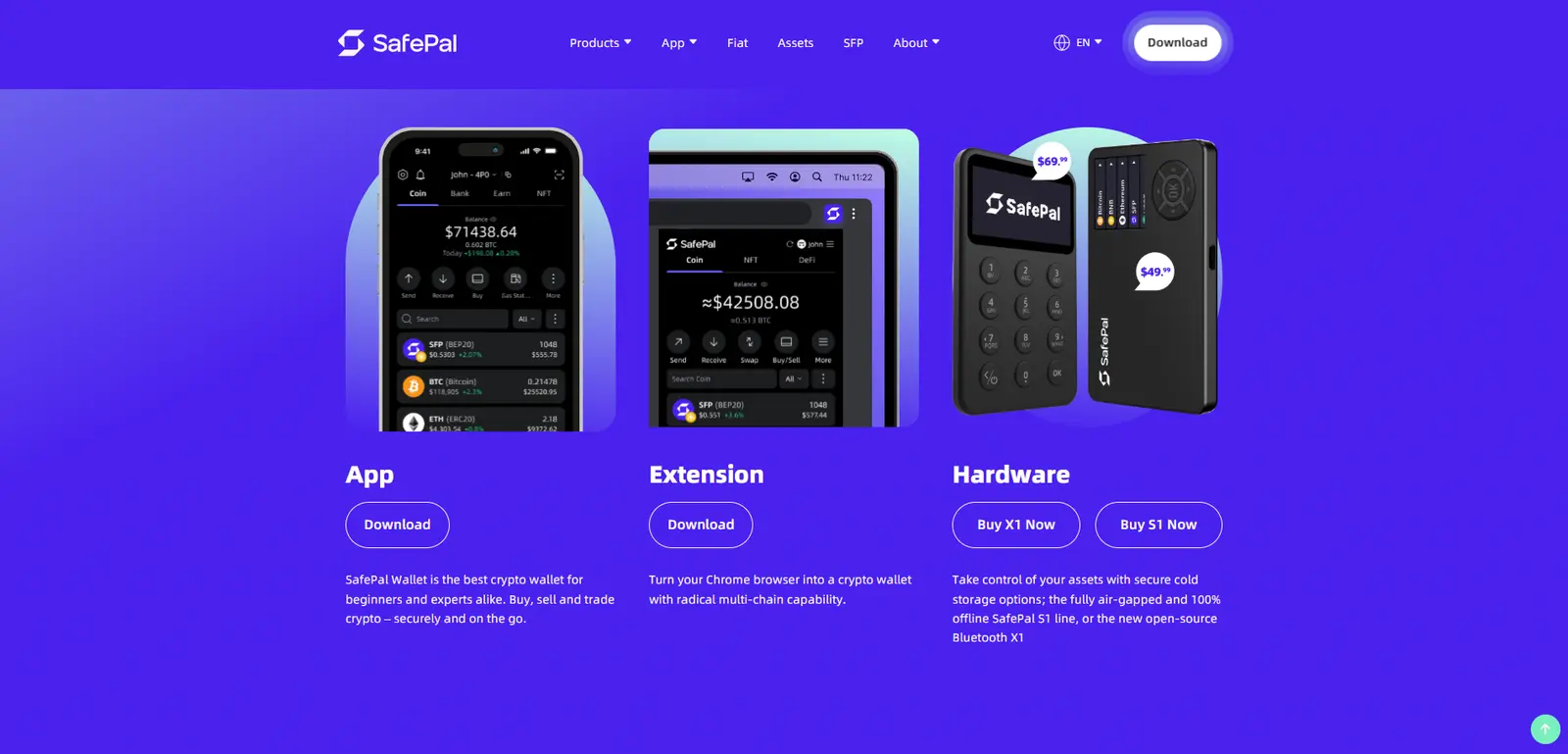
SafePal combines hardware wallets, a mobile app and a browser extension. You can manage your accounts in the software and choose the device that suits how you want to approve transactions.
Which SafePal models should you compare?
SafePal S1: a portable device with a color screen and camera. It exchanges signing requests with the app through QR codes.
SafePal S1 Pro: a QR-based model with an aluminum-alloy body, tempered-glass panel and 500 mAh battery.
SafePal X1: a Bluetooth model with a physical keypad and a 1.8-inch display for navigating and confirming actions.
Compare S1 and S1 Pro for QR signing, or X1 for Bluetooth pairing with your phone.
Networks and everyday apps
SafePal supports Bitcoin, Ethereum, Solana and many other networks. Its mobile app is available for iOS and Android, alongside a browser extension.
With the S1 models, you scan the request with the device, confirm on its screen, then scan the signed result back into the phone. The app displays your accounts and sends the approved transaction to the network.
Security technology
The three models use EAL6+ secure elements, PIN protection, optional passphrases and device-authentication checks. The device handles signing, while its screen and physical controls let you review and confirm the transaction.
Useful for: a multi-chain portfolio managed from a phone, with a choice between QR-based and Bluetooth hardware.
2. Tangem: crypto access through a card or ring
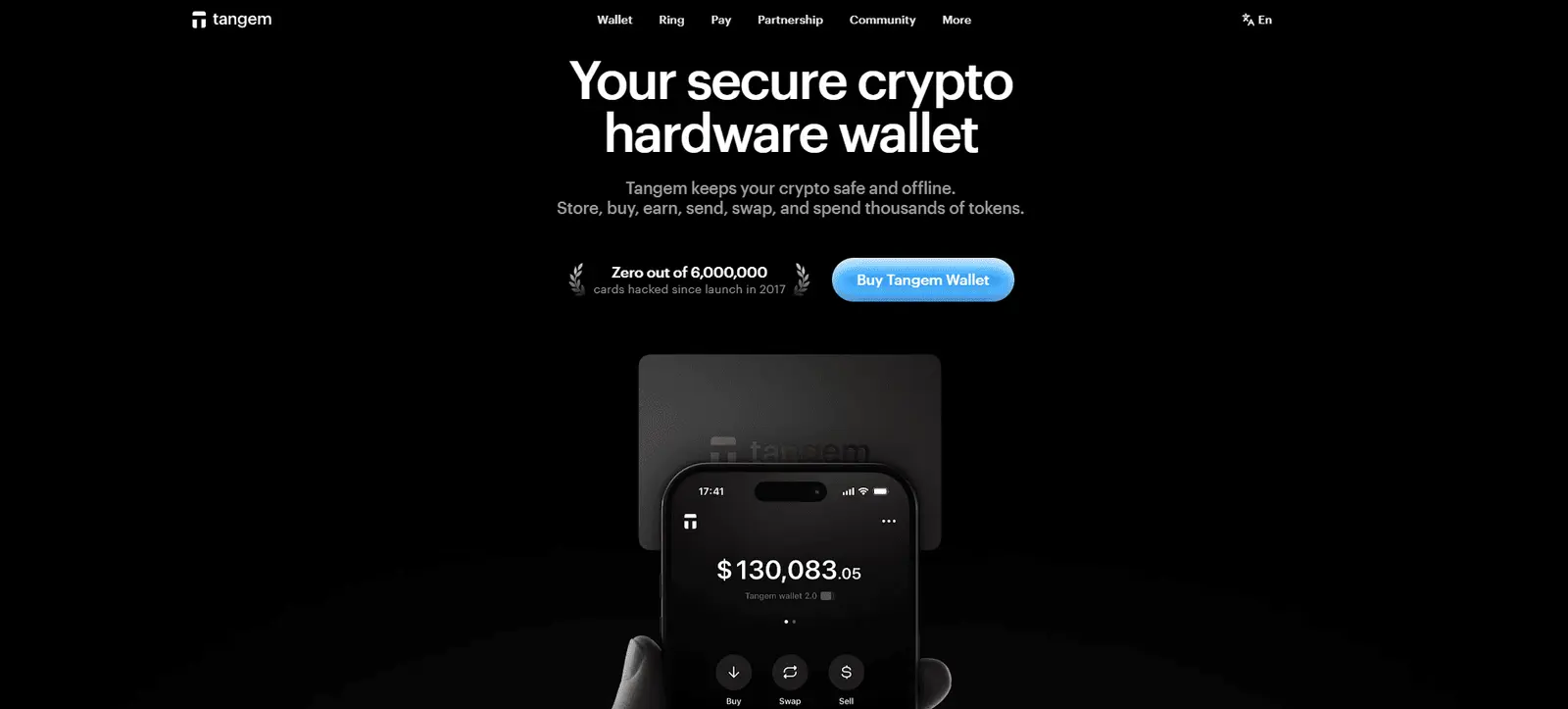
Tangem builds its wallet experience around a familiar gesture: open the app and tap the card or ring against your phone. The app shows your accounts and transaction details, while the physical device signs the transaction.
Wallet cards and Tangem Ring
Tangem Wallet comes in sets of two or three cards. You link the cards to the same wallet during setup, giving each one access to the same accounts.
Tangem Ring puts the signing chip in a wearable format and comes with two backup cards. The ring and cards use the same app and NFC interaction, so the choice is mainly how you prefer to carry the device.
Networks and the mobile app
The Tangem app for iOS and Android lets you view balances and prepare transfers on an NFC-compatible smartphone. Supported networks include Bitcoin, Ethereum and Solana.
Security and backup technology
The cards and ring use a Samsung secure element with an EAL6+ evaluation. In a seedless setup, the chip generates the keys and the devices linked during setup provide backup access. An access code protects their use, and the phone supplies the NFC power.
Current-generation cards and Tangem Ring also offer an optional recovery phrase, chosen when you create the wallet. Without a phrase, access relies on the linked devices. Choose all your backup cards during setup: you cannot add a new card to that same wallet later.
Useful for: managing crypto mainly from a phone, with a card or ring that needs no charging.
3. Trezor: several device formats with Trezor Suite
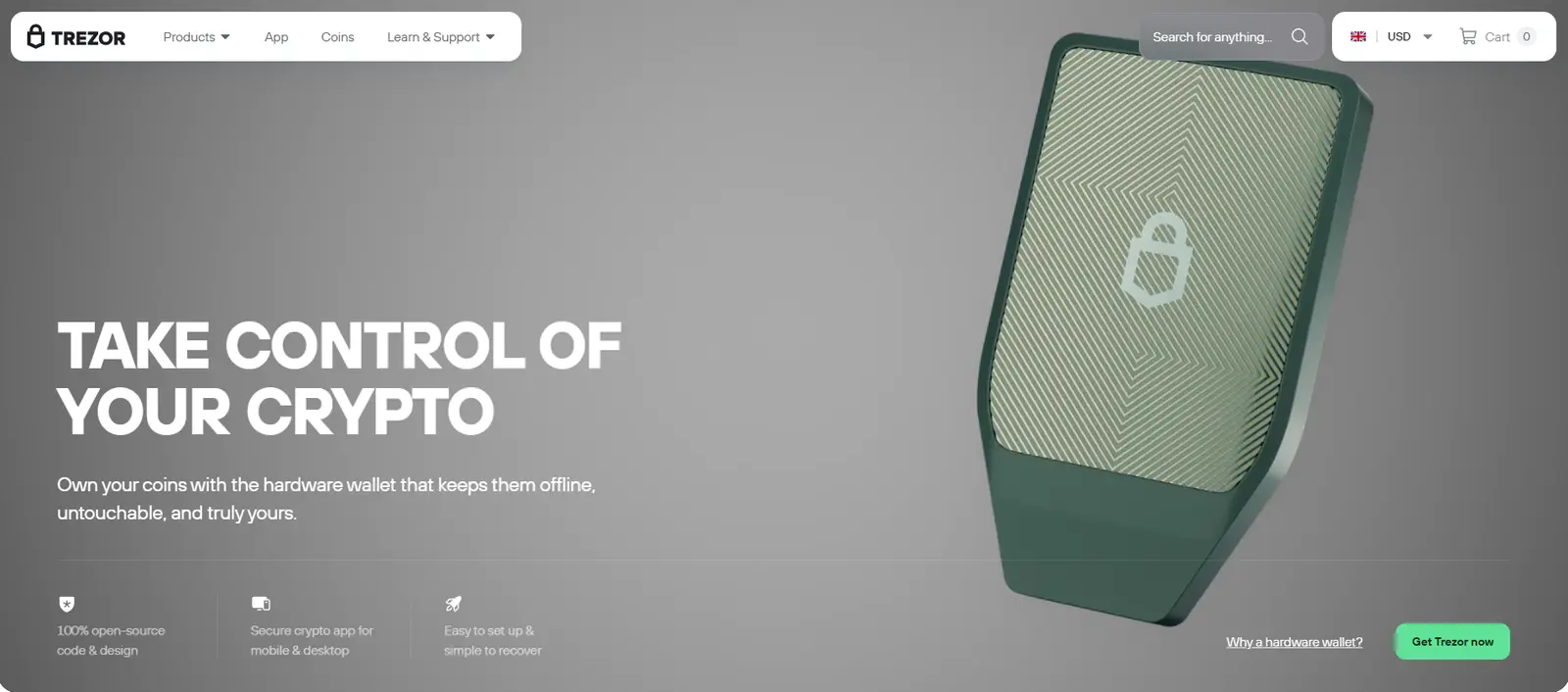
Trezor combines physical transaction confirmation with Trezor Suite, its account-management app. The Safe range lets you choose two buttons, a compact touchscreen or a larger wireless model while using the same software.
Safe 3, Safe 5 and Safe 7
Safe 3: a compact USB-C device with two physical buttons for navigation and confirmation.
Safe 5: a color touchscreen with haptic feedback, USB-C connectivity and on-device passphrase entry.
Safe 7: a larger 2.5-inch touchscreen, Bluetooth and USB-C, plus wireless charging and a metal body.
The Safe range also includes Bitcoin-only editions. For a portfolio including Bitcoin, Ethereum and Solana, choose a model configured with universal firmware.
Desktop, Android and iPhone
Trezor Suite brings together balances, account history and supported send, receive, trade and staking features. The Safe models work with desktop and Android connections. Safe 7 also lets you sign from an iPhone through Bluetooth with the iOS app.
Security technology and recovery
Safe 3 and Safe 5 use an EAL6+ secure element alongside PIN protection and device-authentication checks. Safe 7 adds a second secure element, with the two chips working alongside the main microcontroller.
Trezor's hardware and software are open source. The Safe models support 20-word backups, either as one recovery share or as several shares. Each share is a set of words; with a multi-share backup, you choose how many shares are needed to restore access.
Useful for: choosing between buttons and touchscreens for desktop or Android use, with Safe 7 adding signing from an iPhone.
4. Keycard Shell: a screen and camera for removable signing cards
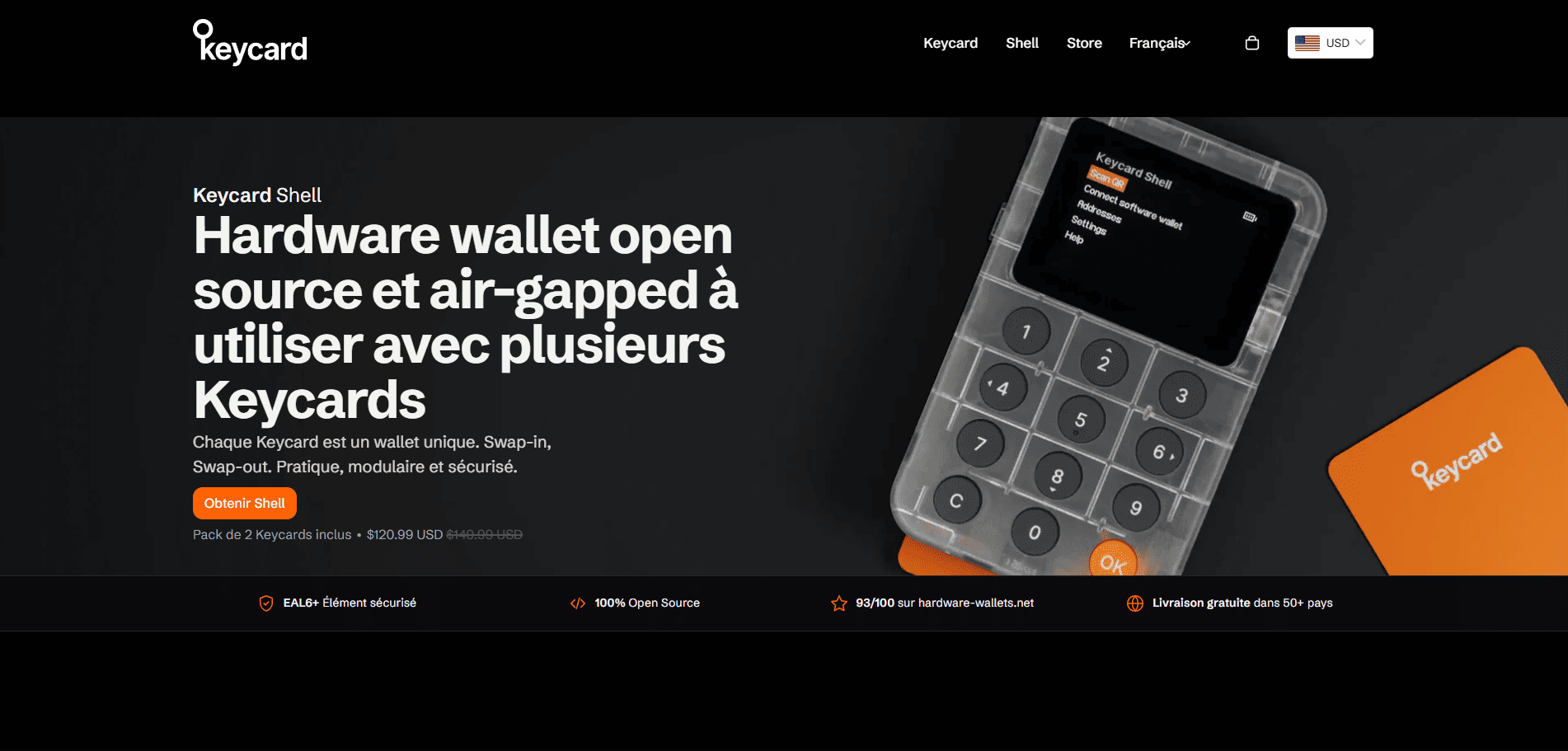
Keycard Shell combines a screen, keypad and QR camera with a removable Keycard. The card holds the wallet's keys and signs transactions; Shell lets you read and approve the requests.
Apps and supported networks
A Keycard can work directly with the Status app through NFC on iOS or Android. With Shell, the app displays a QR request, Shell scans it, and the app reads the signed result.
Shell works with applications such as MetaMask or Rabby for Ethereum and supported EVM networks, and Sparrow for Bitcoin. Start with the network you want to use, then choose a compatible app.
Security and removable cards
The Keycard's EAL6+ secure element stores the keys and performs signing. Shell's screen and keypad give you a separate place to review and confirm the request.
Removable cards let you keep separate wallets. For example, you can dedicate one card to long-term holdings and another to regular activity, then use the same Shell with each.
Useful for: a Bitcoin or EVM setup where QR signing and interchangeable cards fit your routine.
5. Foundation Passport Prime: Bitcoin, authentication and a dedicated touchscreen
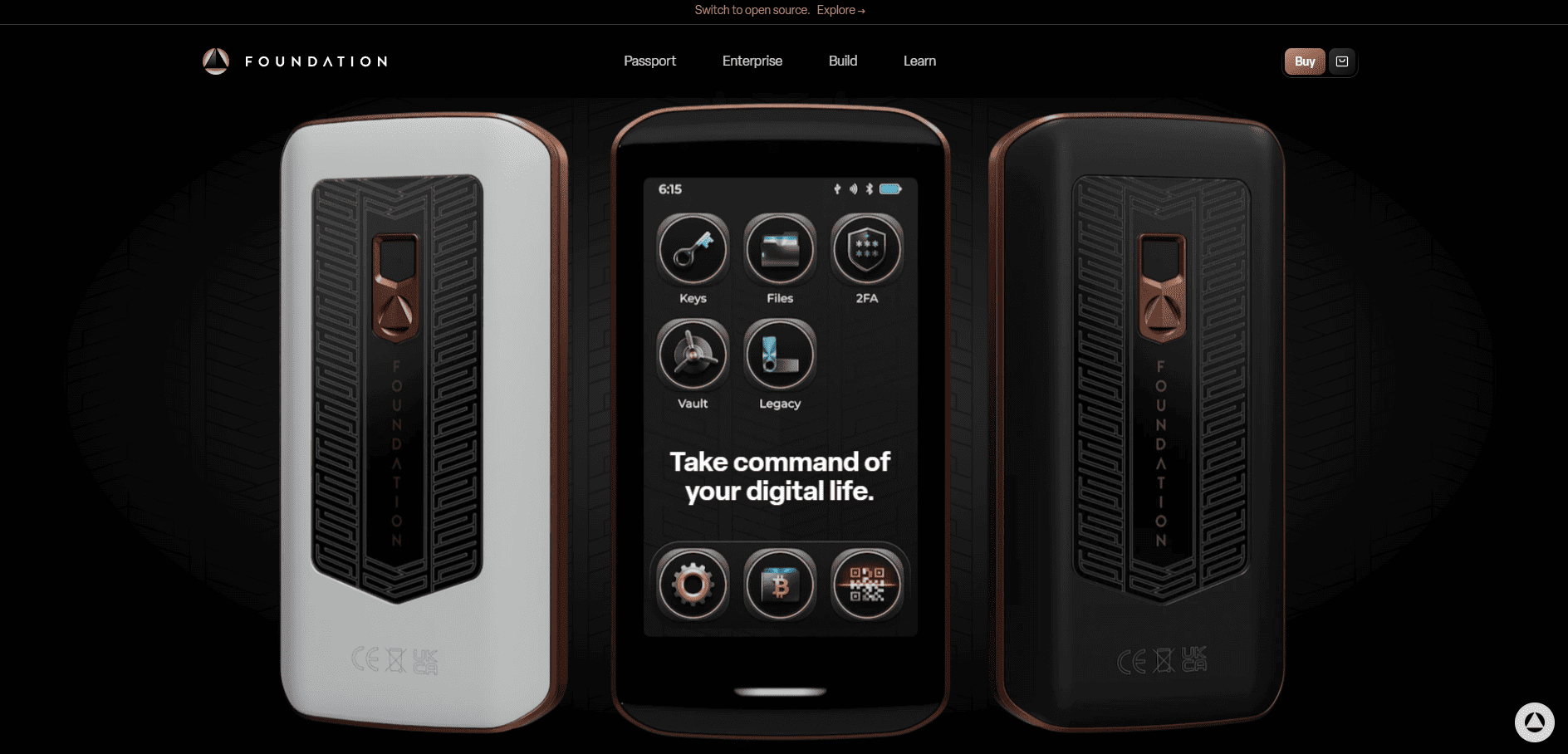
Passport Prime is Foundation's touchscreen device. It combines a built-in Bitcoin wallet with security keys and temporary login codes for services that use two-factor authentication.
The device and its mobile app
Prime uses the KeyOS operating system. Its 3.5-inch touchscreen lets you navigate between apps and read transaction details before approving.
Envoy, available for iOS and Android, manages the mobile side of the Bitcoin wallet. It connects with Prime for setup and everyday use through QuantumLink, an encrypted Bluetooth connection.
Security technology
KeyOS runs apps in separate compartments, keeping their work apart from sensitive signing functions. Foundation's hardware and software are open source, with published security audits.
Cards and backup options
Foundation's Keycards hold encrypted backups for Prime. Magic Backup is Envoy's encrypted backup system. These Foundation cards are separate products from the Keycard used with Shell.
Useful for: managing Bitcoin and using login security tools on the same dedicated device.
6. GridPlus Lattice1: a large-screen wallet for your desk
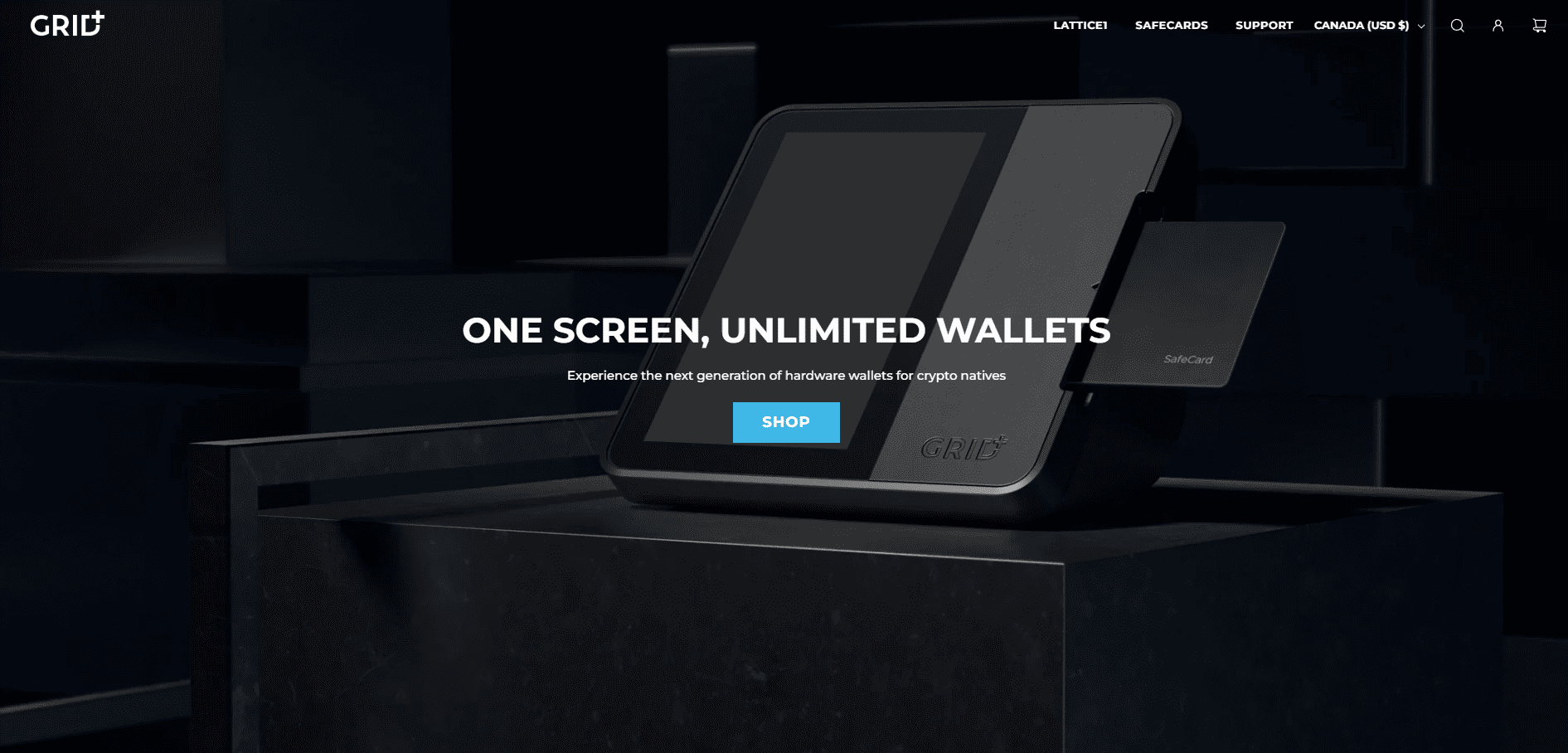
GridPlus Lattice1 is designed for use at a desk. A compatible app displays your accounts, and you review transaction requests on the device's five-inch touchscreen.
Apps, networks and SafeCards
Lattice1 works with MetaMask and Rabby for Ethereum/EVM accounts, and with NuFi for Bitcoin, Solana and supported EVM networks. GridPlus also provides Lattice Manager for managing the device and supported accounts.
SafeCards provide PIN-protected storage for individual wallets or backups. You use them with Lattice1, which supplies the screen and confirmation controls.
Security technology
Lattice1 separates its general computing environment from a dedicated environment for signing and the trusted display. That signing environment handles key operations and the transaction details shown on the touchscreen.
The larger display gives supported transaction details room to be reviewed together.
Useful for: regular use of compatible Bitcoin, EVM or Solana apps from a desk, with a large physical review screen.
7. Arculus: an NFC wallet card with mobile authentication
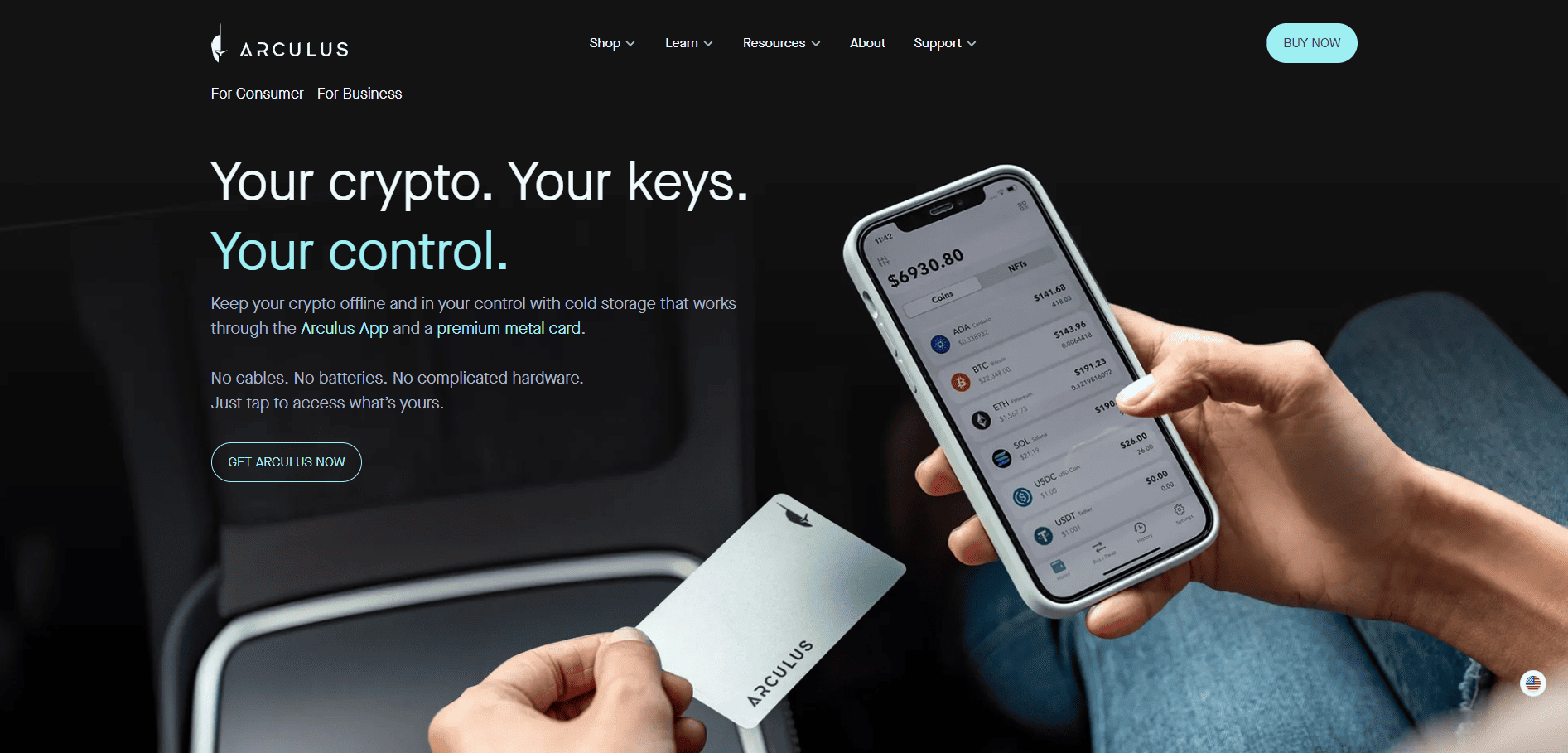
Arculus pairs a metal signing card with a mobile app. You view accounts and prepare transfers on the phone, then tap the card to approve the transaction.
The card and the Arculus app
The iOS and Android app lets you view balances, send, receive and configure recovery. The phone powers the card through NFC, so the card needs no battery or charging.
Supported networks include Bitcoin, Ethereum, Solana and XRP. Arculus offers different card editions and bundles within the same product family.
Three-factor authentication
Arculus combines an NFC card and PIN with optional biometric protection in its documented setup. Check how authentication applies to the action you want to perform. The card's EAL6+ secure element stores the keys and signs the transaction, while the phone displays the details.
Useful for: phone-based transfers with a battery-free card, with card-based approval, a PIN and optional biometric protection.
How to choose your first hardware wallet
Start with your assets and networks
List the assets you want to manage and the networks where you hold them. For example, USDC on Ethereum, Base and Solana corresponds to different network accounts. Check support for each account in both the device and the app you plan to use.
For a portfolio including Bitcoin, Ethereum and Solana, SafePal S1, Tangem Wallet, Trezor Safe 5 with universal firmware and Arculus provide relevant starting points. Lattice1 also covers these networks through compatible apps, including NuFi for Solana.
Choose the interface that fits your routine
For phone-based use, consider an NFC card or a device paired with a mobile app. If you want to read transaction details on a separate screen, compare the touchscreen and QR-based models. Think about where you will use it: at a desk, while traveling or for occasional transfers.
Compare the complete setup
Include the device, any additional cards, backup accessories, shipping and taxes in your budget. The manufacturer links show current prices and available bundles. Network transaction fees are paid separately when you transfer assets.
Finally, decide how you will store and use your recovery material. Check whether the setup uses recovery words, linked cards or shares, and which items you need to regain access.
How to set up a hardware wallet and make your first transfer
Choose the model and official app. Install the software for your device from the manufacturer's website. Complete any authenticity checks shown during setup.
Create the wallet. Follow the supported process for generating a new wallet and setting its access code or PIN.
Complete the backup. Record recovery words offline or configure the backup cards or shares required by the product. Complete the backup check included in setup.
Add the right account. Select the cryptocurrency and network you want to receive, then give the account a useful label.
Display a receiving address. Check it on the device's screen where available, or through its supported verification process. Use that address for a transfer on the matching network.
Make a small first transfer. Confirm receipt in the app, then try a small outgoing transaction. Keep enough of the network's fee token, such as SOL on Solana or ETH on Ethereum, for that outgoing test.
Organize your accounts and backup. Add your other supported assets and store your recovery material in the places you chose.
If you already use a software wallet, creating a new hardware wallet gives you new accounts. Transfer assets to their addresses when you are ready. To use those hardware-controlled accounts in a compatible browser wallet, select its hardware-connection option. You do not need to enter the device's recovery phrase into an extension to connect it.
Hardware wallet FAQ
Can I receive crypto while the device is switched off?
Yes. An existing address can receive a blockchain transfer while the hardware is switched off. The app displays the balance when it checks the network. You use the hardware when you need to sign an outgoing transaction.
How do I restore a wallet on another device?
Use the recovery method chosen at setup. Recovery words or shares can restore access on hardware that supports the original backup format and networks. With a seedless Tangem wallet, access comes from the cards or ring already linked to the wallet. A remaining device works with another compatible phone; it cannot be used to add a new backup card later.
Can I use hardware with MetaMask or another wallet app?
Yes, if the app supports the exact hardware model and network. For example, Lattice1 connects to MetaMask and Rabby for EVM accounts. Use the app's hardware-connection option to access the accounts controlled by the device.
Can I stake or use DeFi with a hardware wallet?
Yes, when the device, app and network support the operation. The app prepares the request and the hardware signs it. Staking means committing or delegating crypto to help a proof-of-stake network operate and participate in its rewards. DeFi covers blockchain-based financial services, such as token swaps and lending.
How much does a hardware wallet cost?
The price depends on the model, region and bundle. Compare the official stores linked above, including the number of cards and included accessories. Delivery, taxes and any additional backup materials complete the purchase budget.
Do I need several devices?
One compatible device can manage several accounts. Some setups use extra cards or devices for backup; others use recovery words or shares. The product's backup method determines which items you need and when to configure them.
Once you have chosen your networks, interface and backup method, explore the crypto wallet directory to compare more solutions for your setup.