Choosing a crypto wallet is easier when you start with what you want to do. Keeping Bitcoin, swapping tokens on Solana and using an Ethereum app involve different networks and tools. A wallet that works well for one task may be a poor fit for another.
This guide compares eight of the best crypto wallets to consider in 2026, covering everyday apps, Web3 connections and hardware devices. For each option, you will find its main use case, useful features and the trade-off that matters before you move funds. All eight offer self-custody: you manage the credentials needed to access your crypto.
Compare the 8 crypto wallets at a glance
Start with your network and preferred device. The wallets are grouped by use case, so the order is a reading guide rather than a performance ranking.
Wallet | Good fit for | Key networks | Format |
|---|---|---|---|
Phantom | Solana plus selected other networks | Solana, Ethereum, Base, Bitcoin, BNB Chain | Mobile app and browser extension |
MetaMask | Ethereum and EVM apps | Ethereum, Base, Arbitrum, BNB Chain; also Bitcoin and Solana | Mobile app and browser extension |
Trust Wallet | Assets across several ecosystems | Bitcoin, Ethereum, Solana, BNB Chain and others | Mobile app and browser extension |
Backpack | Solana dApps and selected EVM networks | Solana, Ethereum, Base, Arbitrum and others | Mobile app and browser extension |
Solflare | SOL staking and Solana apps | Solana | Mobile app, browser extension and web wallet |
Jupiter Wallet | Solana swaps and trading orders | Solana; supported cross-chain deposits convert to USDC on Solana | Chromium extension; separate Jupiter Mobile app |
SafePal | Multichain use with a choice of software or hardware | Bitcoin, Ethereum, Solana, BNB Chain and others | Mobile app, browser extension and optional hardware devices |
Trezor | Signing transactions on a separate device | Bitcoin, Ethereum, Solana and others; support depends on model and app | Hardware device with Trezor Suite or compatible wallets |
The network column gives examples, not complete compatibility lists. Staking, NFT display and dApp connections can differ between the mobile app, extension and hardware setup.
Crypto wallet vs Web3 wallet: what is the difference?
A crypto wallet manages the keys used to access your blockchain accounts. Your assets remain on the blockchain; the wallet lets you view balances and authorize transactions. A Web3 wallet also connects to decentralized applications, or dApps, for activities such as swapping tokens, staking and using NFT marketplaces.
A software wallet normally keeps keys on your phone or computer. A hardware wallet keeps them on a separate physical device that signs transactions. These can work together: a compatible app displays the account while the hardware device approves the action. Connecting hardware does not turn an existing software account into a hardware account.
How we compared these wallets
We reviewed official product pages and support documentation on October 13, 2026, focusing on supported networks, devices, dApp connections, staking or trading tools, and signing options. Each selection fills a different practical need. This is a documentation-based comparison; we did not run identical hands-on tests across all eight wallets or independently audit their code.
Some linked product profiles contain affiliate links. dApps.tools may earn a commission from qualifying purchases through those links.
Everyday wallets for multiple blockchains
These options are useful starting points when you want one wallet interface for assets and apps across several networks.
1. Phantom: Solana with selected additional networks
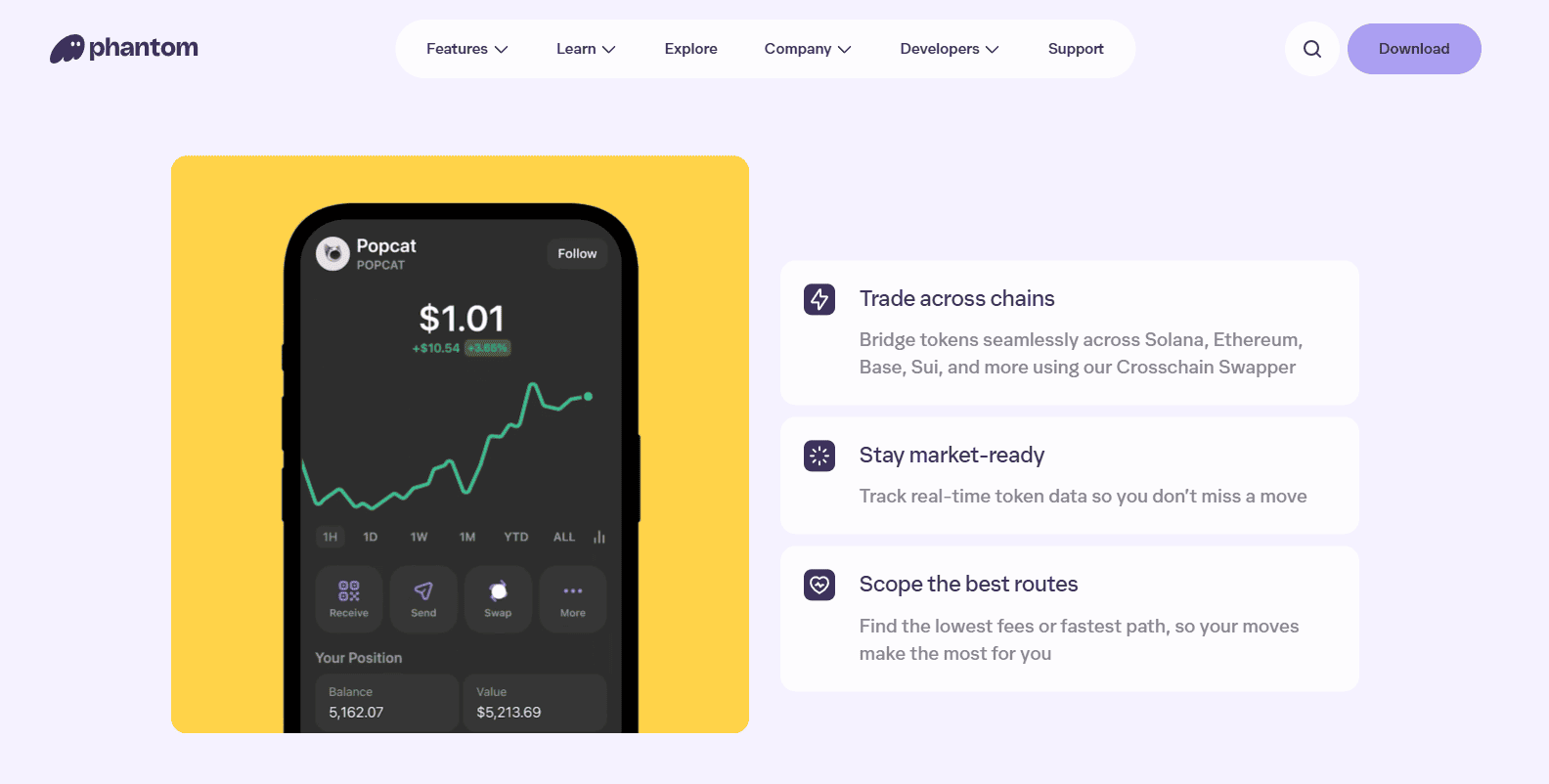
Phantom combines a mobile app and browser extension with token swaps, NFT viewing and dApp connections. It suits someone whose daily activity centers on Solana but who also wants access to networks such as Ethereum, Base, Bitcoin and BNB Chain.
Its appeal is the combination of everyday wallet tasks in one interface. You can hold tokens, connect to an app and review a transaction without maintaining a separate wallet solely for each supported chain. Hardware connections depend on the exact model and platform.
Main trade-off: Phantom supports a selected network list. Arbitrum and Optimism are currently absent, and support for Sui and Monad has ended. Confirm the current Phantom networks before receiving funds. If your focus is Solana, our Phantom alternatives comparison goes deeper into other interfaces and switching options.
2. MetaMask: Ethereum and EVM dApps
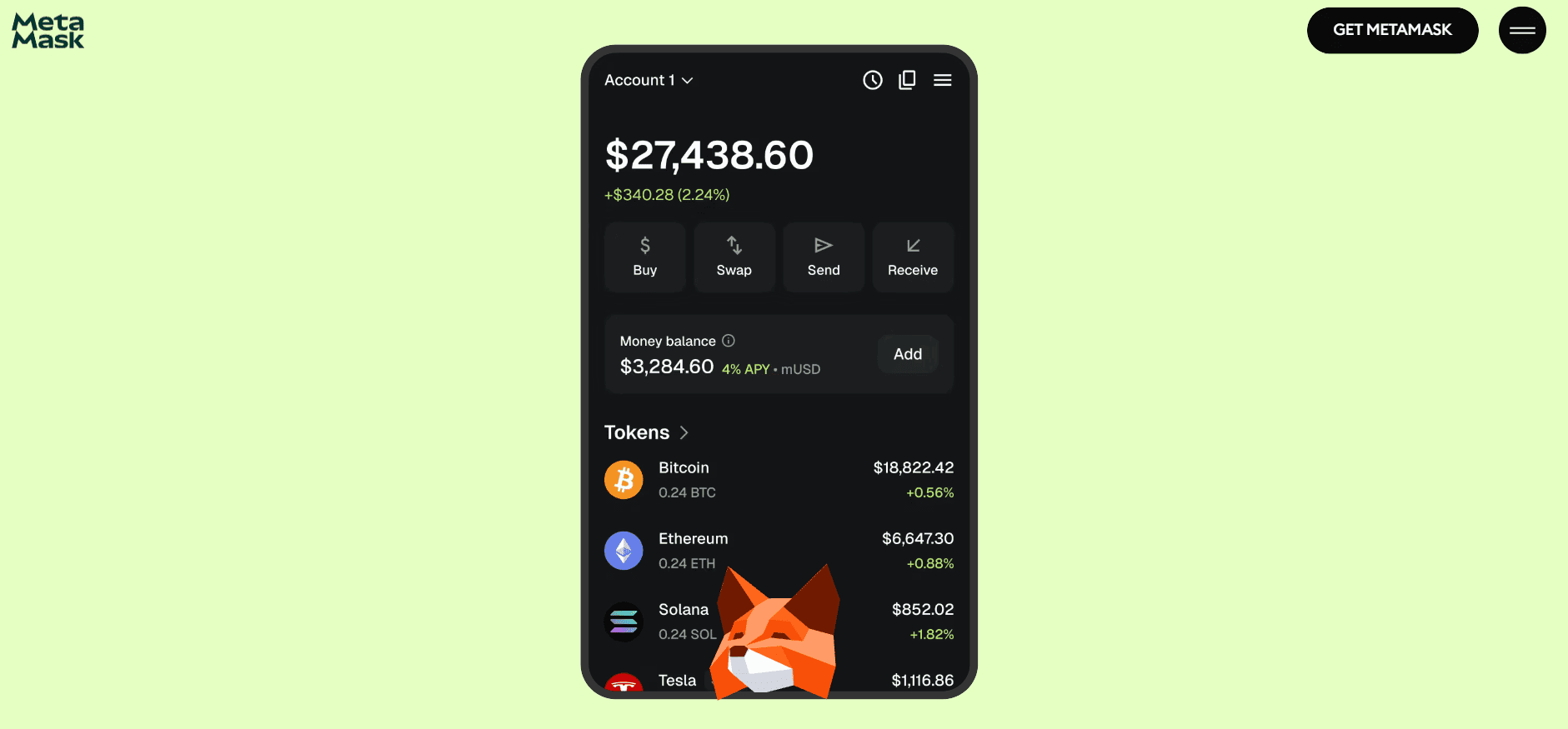
MetaMask is a practical option for using Ethereum and EVM networks, meaning blockchains compatible with Ethereum's application environment. Examples include Base, Arbitrum, Optimism and BNB Chain. Its mobile app and extension let you manage accounts and connect to compatible dApps.
Network selection is a useful part of the experience when you use several of these ecosystems. MetaMask also supports Bitcoin and Solana natively, so describing it as an Ethereum-only wallet is outdated.
Main trade-off: features and hardware connections vary by network. Trezor can connect through MetaMask for supported EVM accounts; that does not automatically cover Solana. Confirm the device, chain and account type you want to use. For any dApp, check the requested network and account before approving an action.
3. Trust Wallet: assets across a broad range of networks
Trust Wallet is a self-custody wallet for iOS, Android and browsers. The provider advertises support for more than 100 blockchains across its products, including Bitcoin, Ethereum, Solana and BNB Smart Chain. This breadth makes it relevant when your holdings span several unrelated ecosystems.
Alongside transfers, it offers swaps, staking for supported assets and dApp access. For example, someone managing BTC, SOL and BNB can consider it as a common interface, while checking how each asset works on their chosen device.
Main trade-off: a large chain count does not guarantee the same features everywhere. Confirm that the specific token, staking option and dApp connection you need are available in the app or extension. The official Trust Wallet overview provides its current product options.
Wallets for Solana apps, staking and trading
These wallets put Solana activity at the center of the experience. Start with the actions you repeat most often: connecting to apps, managing staked SOL or placing trading orders.
4. Backpack: Solana dApps and selected EVM networks
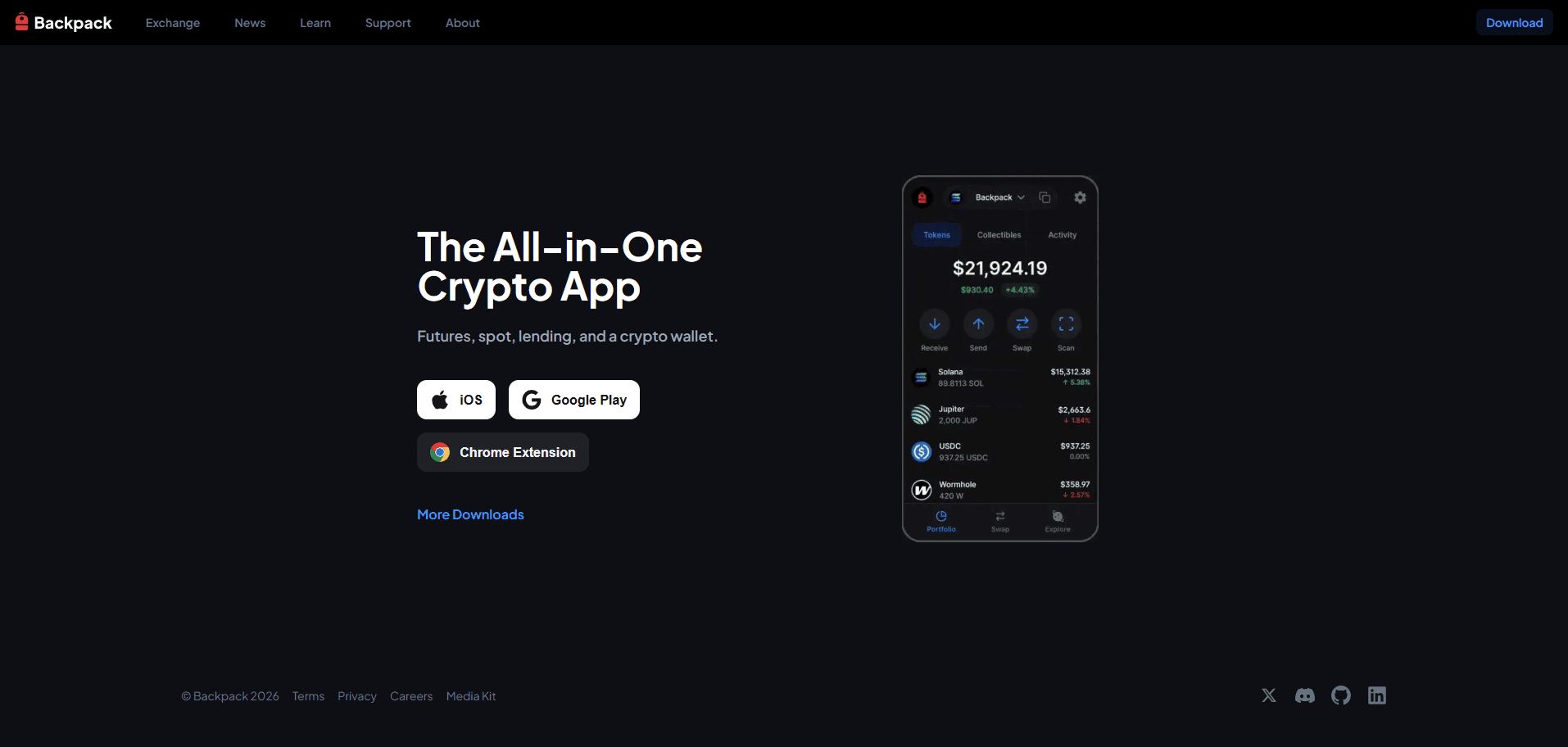
Backpack offers a mobile app and browser extension. The extension supports swaps, dApp connections and NFT viewing. Its wallet documentation lists Solana, Ethereum, Base, Arbitrum, Optimism, Polygon and Sonic, making it an option for people who use Solana alongside those EVM networks.
It is a useful comparison with Phantom if your app activity includes networks such as Arbitrum or Optimism. Check the connection flow in your regular dApps rather than choosing solely from the list of chains.
Main trade-off: Backpack Wallet and Backpack Exchange are different products. The mobile app presents wallet and exchange services, so identify which account provides a deposit address or trading feature. A self-custody wallet balance and an exchange balance involve different custody arrangements.
5. Solflare: SOL staking and a dedicated Solana interface
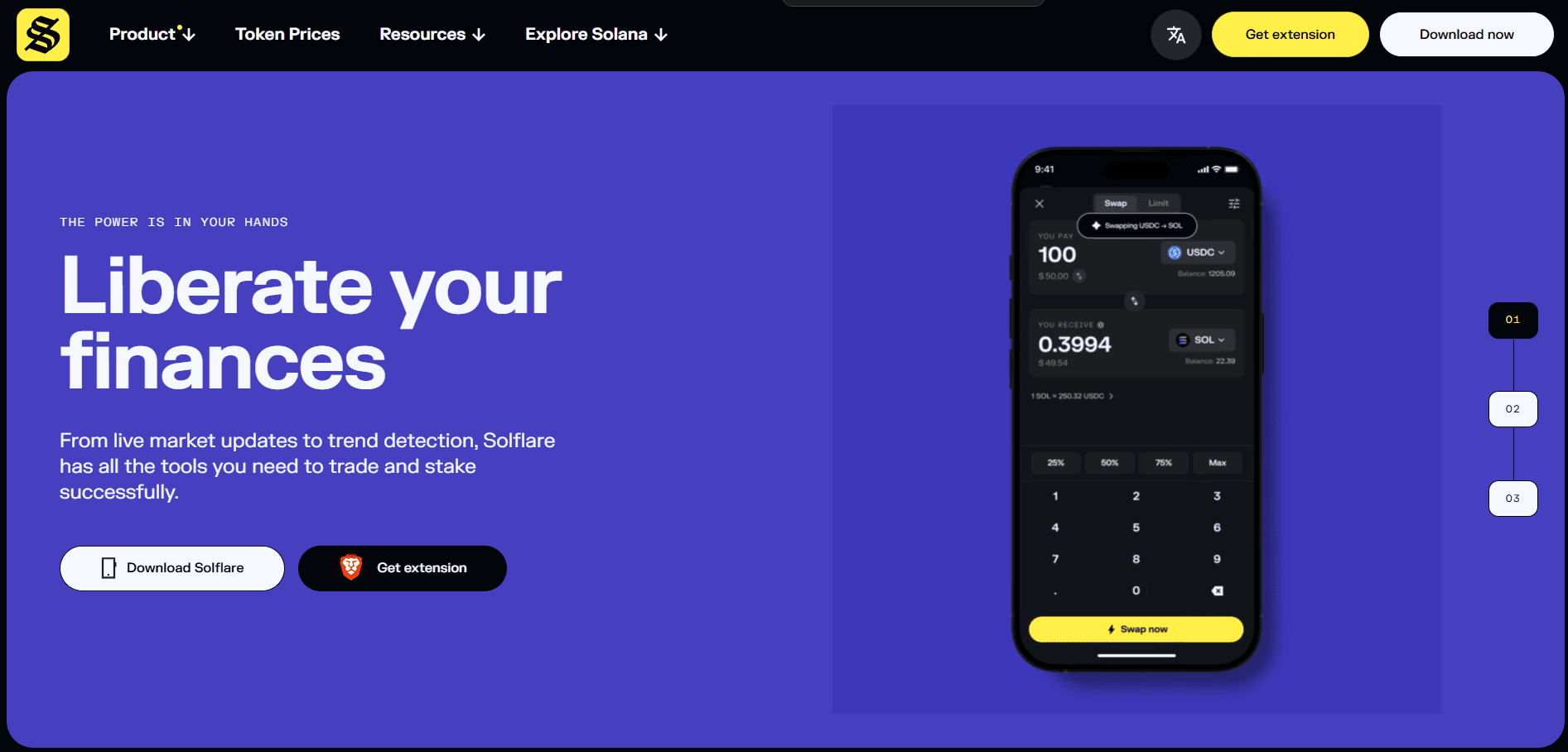
Solflare focuses on Solana through a mobile app, browser extension and web wallet. It brings together token transfers, swaps, NFT management, dApp access and native SOL staking.
Staking lets you delegate SOL to a validator that helps operate the network and may earn rewards. Solflare lets you choose a validator and manage the stake from the wallet. It also offers a separate Shield hardware wallet. For a broader view of the available approaches, compare crypto staking tools.
Main trade-off: Solflare's focus on Solana does not provide a full interface for assets on other chains. For staking, check validator commission and the withdrawal process. Rewards vary, and standard unstaking can require waiting for the network's staking cycle to end.
6. Jupiter Wallet: swaps and orders close to your Solana account
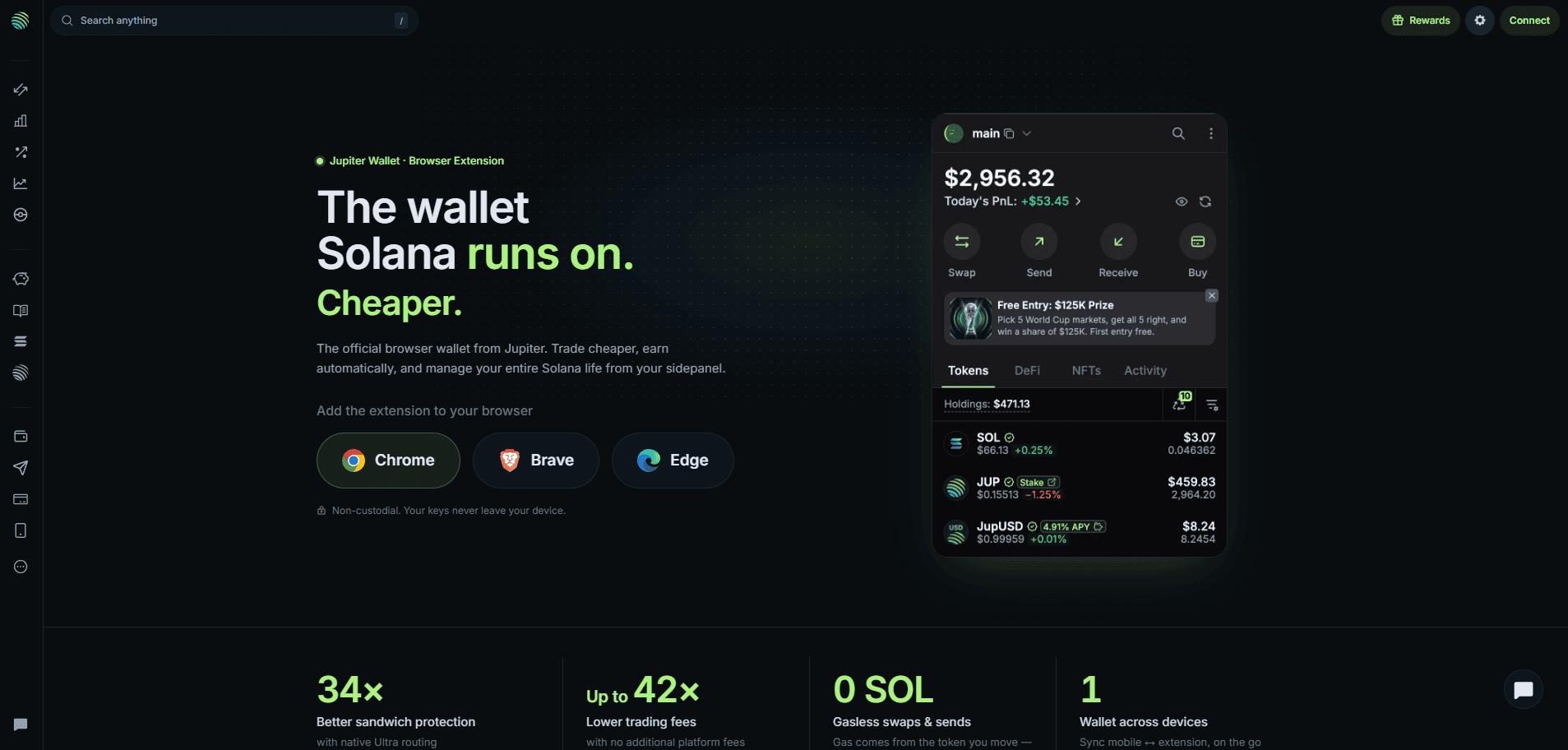
Jupiter Wallet is a self-custody Solana extension for Chromium browsers such as Chrome, Brave and Edge. Jupiter Mobile is a separate iOS and Android app; Jupiter Sync lets you use the same wallet across the two. Our Jupiter profile covers the wider platform.
The extension combines swaps through Jupiter Ultra with limit orders, recurring orders and a view of balances and positions in supported apps. A limit order sets a target trading price; a recurring order schedules repeated trades. This makes it relevant if you already use Jupiter regularly.
Main trade-off: receiving from another chain is different from holding assets on that chain. Jupiter's cross-chain deposit instructions explain that accepted deposits arrive as USDC on Solana. Also review the final quote: an eligible gasless swap recovers the network cost from the output, so it is not cost-free.
Wallets with hardware signing options
Hardware changes where keys are stored and where transactions are approved. You can use a device with compatible software for everyday transfers or dApps, provided the exact combination supports your activity.
7. SafePal: software and hardware within one product family
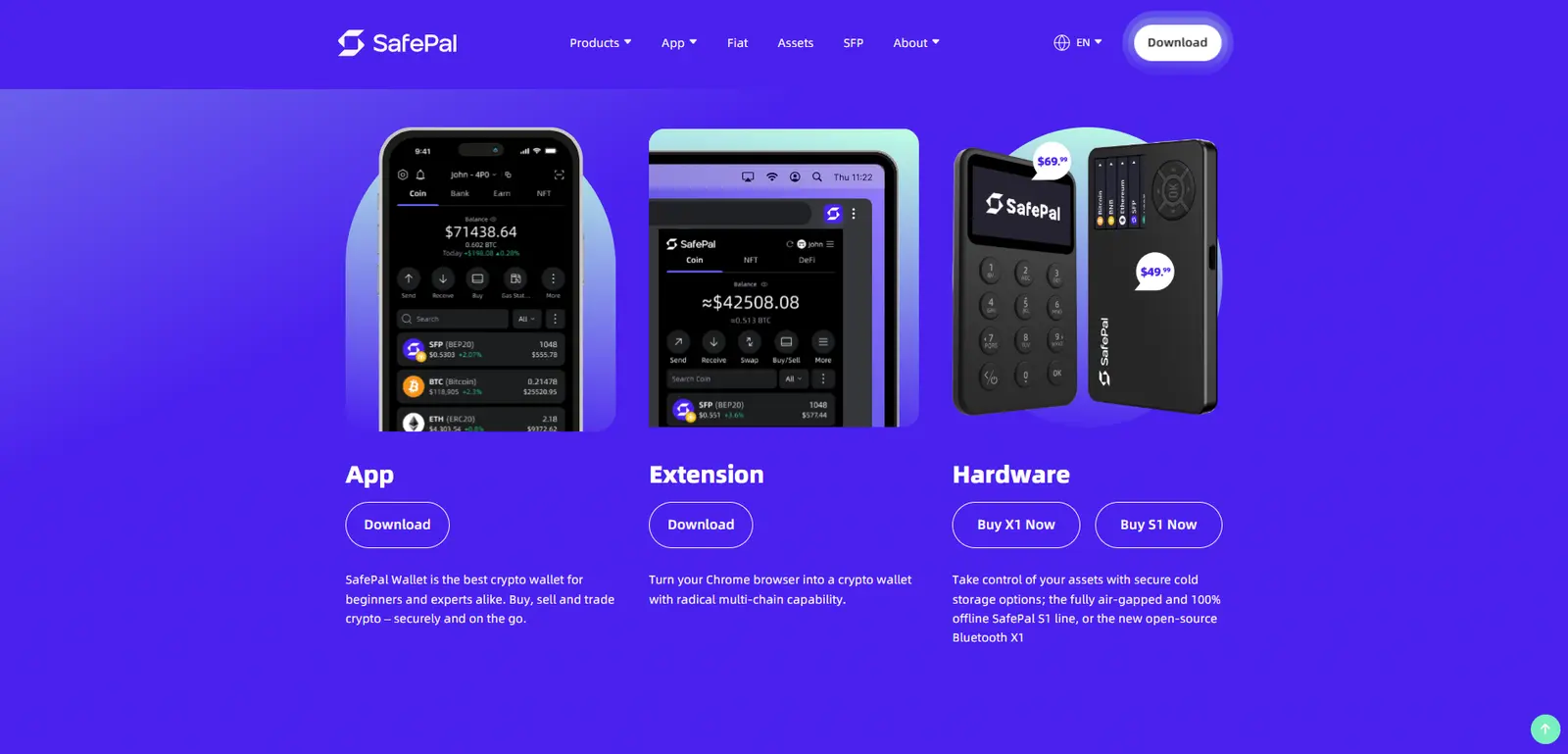
SafePal offers a mobile app, browser extension and separately purchased hardware wallets. Its software covers EVM and non-EVM networks, including Bitcoin, Ethereum, BNB Chain and Solana, with token and NFT management, swaps and dApp access.
The product family is useful if you want to compare a software account with a hardware setup using related interfaces. The S1 signs through a QR-based flow; the X1 uses Bluetooth. These are different device choices, not identical versions of the same signing experience.
Main trade-off: installing the SafePal app does not mean your keys are on hardware. A software account and a connected hardware account remain separate signing setups. Check the specific model, supported assets and connection method before buying a device.
8. Trezor: hardware signing with Trezor Suite
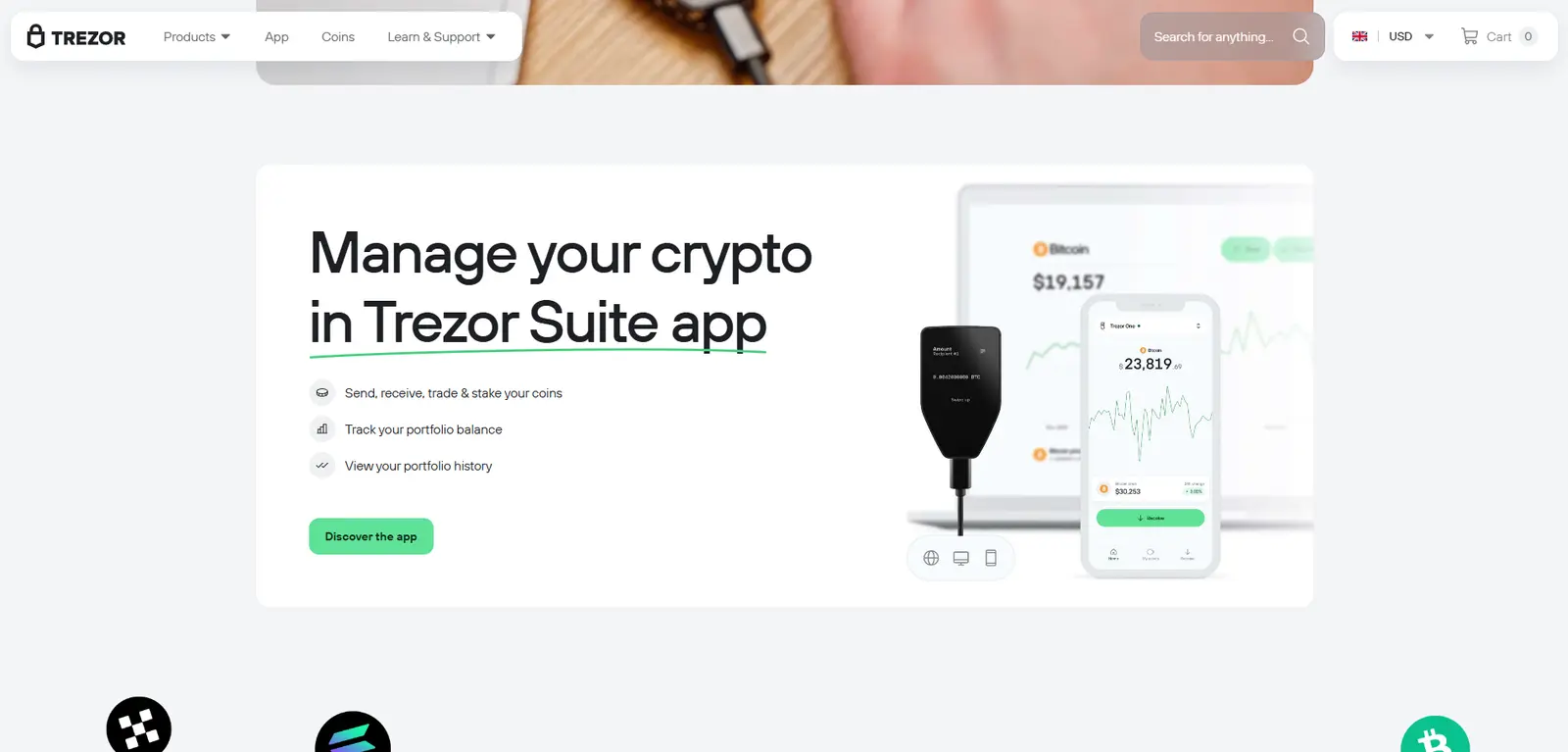
Trezor offers hardware wallets used with Trezor Suite on desktop, web and mobile, or with compatible third-party wallets. The device holds the signing keys while the software displays your accounts and prepares transactions for you to approve.
It suits readers who want to manage Bitcoin, Ethereum and supported assets with physical transaction approval. Solana is supported on the Trezor Safe 7, Safe 5, Safe 3 and Model T; the Model One does not support it. Third-party interfaces provide additional dApp connections, including MetaMask for EVM accounts and Backpack for Solana.
Main trade-off: device, network and phone compatibility vary. The Safe 7 can sign on an iPhone through Bluetooth; other models need a desktop or Android device for signing. Phantom does not support Trezor. Check the official Trezor asset and wallet compatibility before buying. Read the transaction details on the device before approving: hardware key storage cannot make a harmful transaction harmless.
How to choose the right crypto wallet
Use three questions to turn this comparison into a shortlist:
Which networks and apps do you need? Write down the assets you hold and the network used for each. USDC on Solana and USDC on Ethereum require support for different networks. Then check the dApps you actually plan to connect.
Which device will you use? Match the wallet to your phone, browser or hardware device. A wallet may support your token while lacking your preferred hardware connection or mobile signing flow.
Where do you want the keys? A software account is convenient for frequent activity. A hardware account adds a separate signing device. If you use both for different purposes, create distinct accounts and keep track of their recovery methods.
For a first Solana setup, compare Phantom and Solflare, then assess Backpack or Jupiter if their app connections or trading tools fit your routine. For Ethereum and EVM apps, start with MetaMask and compare Trust Wallet for broader asset coverage. If hardware signing is your priority, compare the exact SafePal or Trezor device and software combination.
What does a crypto wallet actually cost?
Installing a software wallet is usually free. The actions you take can still have costs:
Network fees: sending tokens or using a dApp may require a transaction fee. For example, Solana actions commonly need SOL, while Ethereum and Base actions commonly need ETH on the respective network.
Service and trading costs: swaps, card purchases and other integrated services can include provider fees, exchange spreads or price impact. Compare the final amount you receive, not only the displayed fee percentage.
Hardware costs: a physical wallet is a separate purchase. Compare device support and signing methods before paying for features you may not use.
Staking and earning features also have their own conditions. Check commission, withdrawal timing and whether funds enter a separate protocol. A wallet's Earn button does not make every product behind it equivalent to native staking.
How to set up your first wallet
Install from the official product site. Follow its store or extension links and check the publisher before creating an account.
Understand the recovery method. Back up a recovery phrase offline if your setup uses one. For an account-based login, follow the provider's recovery instructions. Never give a phrase or private key to support staff or a dApp.
Choose a new account or an import deliberately. Importing compatible credentials opens an existing blockchain account in another interface. It does not move the funds or replace exposed keys. A new account has new credentials and requires transfers.
Send a small test amount. Match both the address and network, confirm receipt, and keep enough of the required fee token for your next action. You can check the transaction with a blockchain explorer.
When connecting hardware, use the app's hardware connection flow. Never type the hardware wallet's recovery phrase into a browser extension to connect it. For a new hardware setup, generate new keys on the device and transfer assets to its account.
Crypto wallet FAQ
Which crypto wallet is best for beginners?
The best starting point is a wallet that supports your first network and the device you already use. Compare Phantom and Solflare for Solana, MetaMask for Ethereum and EVM apps, and Trust Wallet when you need several ecosystems. Test receiving funds and using one app before building a more complex setup.
Can one wallet hold Bitcoin, Ethereum and Solana?
Yes. Several options here support those networks, but you still use the correct account address and network for each transfer. Support for all three assets does not guarantee identical staking, NFT or hardware features.
Do I need a hardware wallet to use Web3 apps?
No. A software wallet can connect to compatible dApps. Hardware adds a separate signing device when the wallet, chain and app support it. It is an additional setup choice, not a requirement for every Web3 action.
Does switching wallets move my crypto?
Importing compatible credentials gives another app access to the same account; the assets stay on the blockchain. Creating a new account requires transfers. If old credentials may be exposed, importing them elsewhere does not remove that exposure.
Can I recover my funds if the wallet app disappears?
For a conventional recovery-phrase wallet, you can usually restore access through compatible software using your backup. Compatibility includes the network and account format. Accounts created through other recovery systems need their own recovery process, so understand it before depositing funds.
Once you know your network and signing preferences, explore the crypto wallet directory to compare supported devices, features and alternatives in more detail.