Seven Phantom alternatives to compare are Solflare, Jupiter, Backpack, Trust Wallet, Exodus, SafePal, and Ledger. The first three suit readers who mainly use Solana; Trust Wallet, Exodus, and SafePal make sense when the choice also involves other networks or devices. Ledger offers a separate hardware signer. You can replace Phantom’s interface, use another wallet alongside it, or move assets to new keys—the right path depends on why you want to change.
Key takeaways
Match the wallet to your actual activity. Solflare emphasizes Solana use and SOL staking; Jupiter Wallet puts Jupiter’s swaps and portfolio tools in a wallet; Backpack combines a Solana dApp wallet with a wider app.
Check what you need beyond Solana. Trust Wallet, Exodus, and SafePal serve different multi-network or device preferences. Ledger is a physical signing option rather than another ordinary browser wallet.
Decide what “switching” means. Importing a compatible Phantom recovery phrase can show the same account in another app; creating a new wallet requires transfers and gives you new keys.
Why look beyond Phantom?
Phantom is a self-custody wallet available as a mobile app and browser extension. It began with Solana and now supports several networks, so “I need another chain” is not enough on its own to justify a move. Check the exact network, token and dApp you use. A Solana-first layout, a desktop app, another transaction flow, or a hardware signing device may be a more relevant reason to compare alternatives. See Phantom’s current platforms and verify network support in the app.
Compare the seven alternatives at a glance
Start with the device and workflow. The short table highlights meaningful differences; the product sections explain what to verify before moving.
Wallet | Format | Reason to consider it | Check before switching |
|---|---|---|---|
Solflare | Mobile app; browser extension | Solana assets, dApps and SOL staking | Other chains you use |
Jupiter | Browser extension; Jupiter Mobile | Jupiter swaps and Solana portfolio activity | Which actions still require SOL |
Backpack | Mobile app; browser extension | Solana dApps and a different wallet interface | Wallet versus exchange services |
Trust Wallet | Mobile app; browser extension | Solana alongside other networks | Your exact dApp and token support |
Exodus | Desktop app; mobile app | Managing SOL from desktop and phone | Your Solana dApp workflow |
SafePal | Mobile app; extension; hardware options | Choosing between software and physical devices | Features of the specific product |
Ledger | Hardware signer and companion interfaces | Keys held on a separate device | Cost, supported flows and setup |
Solana-focused alternatives
These options are the closest comparisons if your day-to-day Phantom use involves Solana apps, tokens and NFTs. They differ in which actions they put closest to the wallet screen.
Solflare: a Solana-first wallet
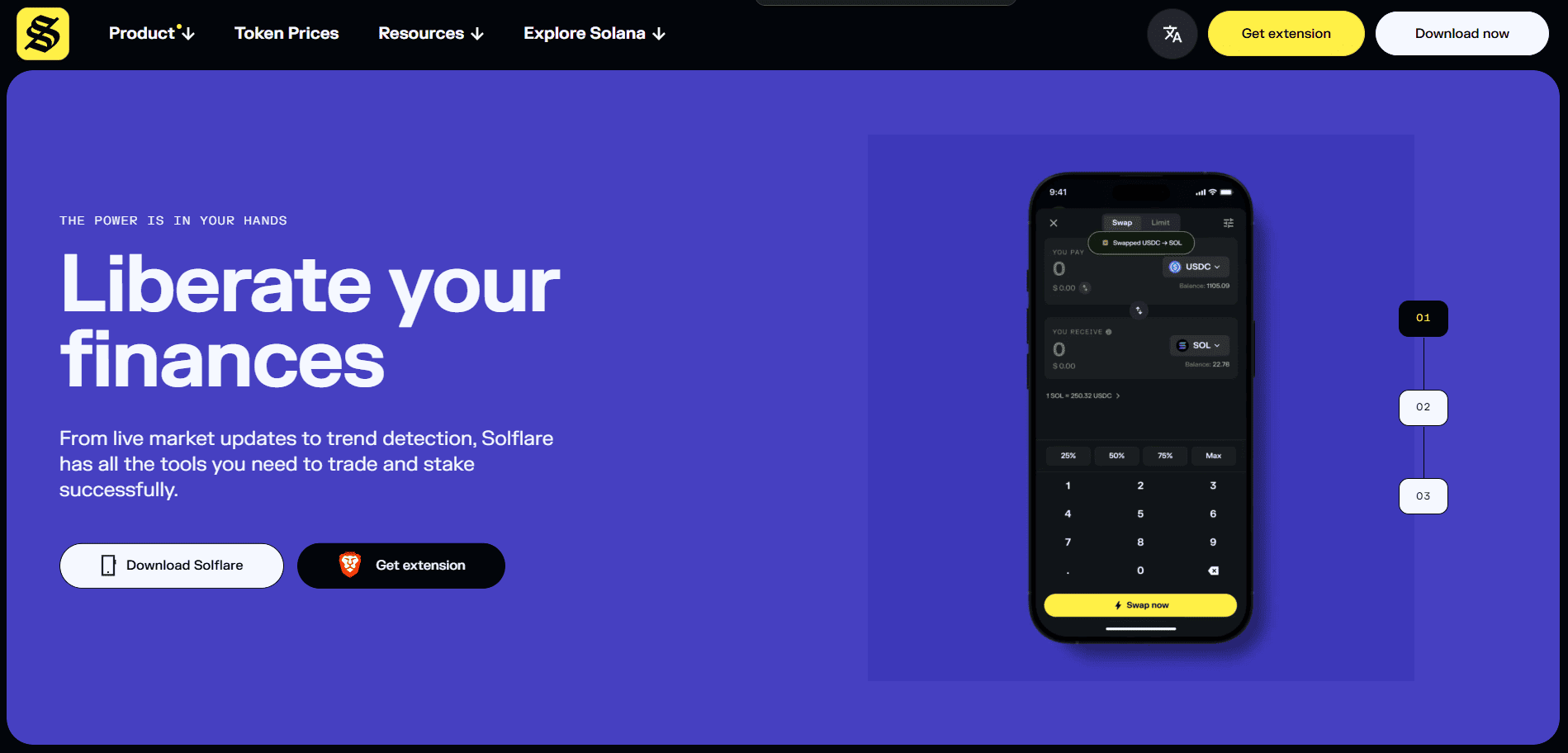
Solflare offers a mobile app and browser extension for Solana. Its wallet covers transfers, dApp access and SOL staking, with a clear focus on this ecosystem. Compare it if you want to change the interface for your Solana activity while keeping familiar wallet tasks.
Before moving: list the non-Solana assets you currently see in Phantom. A wallet focused on Solana may not replace a multi-network setup. If you import an existing account, verify the resulting address before assuming a balance is missing.
Jupiter: swaps and portfolio activity close to the wallet
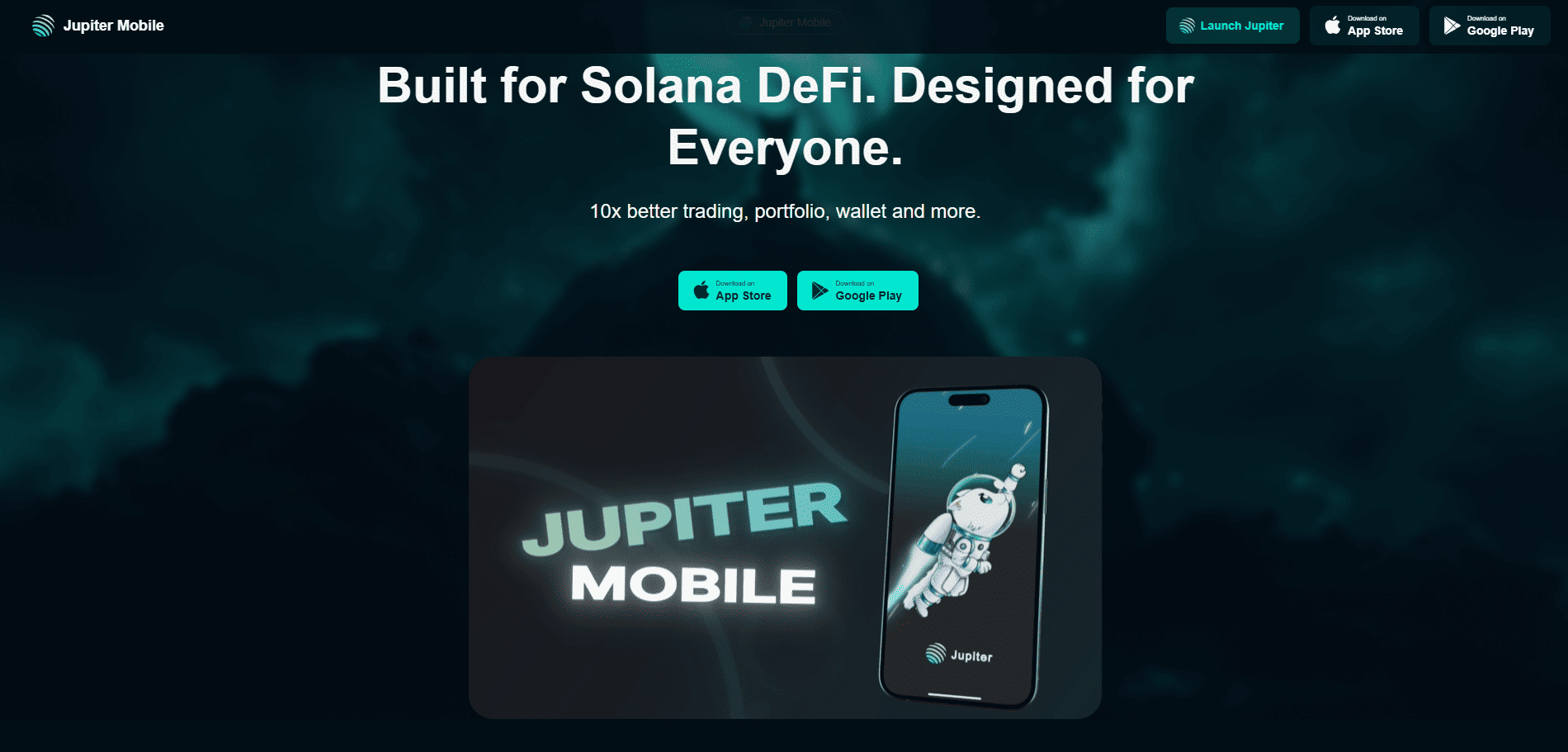
The Jupiter profile covers the broader Solana platform. Jupiter is its self-custody browser extension, with Jupiter Mobile as a separate iOS and Android app. The extension brings swaps, supported DeFi position views and dApp connections into the wallet. It is worth comparing if you regularly use Jupiter and prefer these actions in one interface.
Before moving: Jupiter documents importing a Phantom phrase or private key without transferring funds. That reuses the existing keys; it does not create a safer new address if your old phrase was exposed. Also, “gasless” applies to eligible operations, while NFT transfers and some orders still need SOL.
Backpack: a wallet alongside a wider trading app
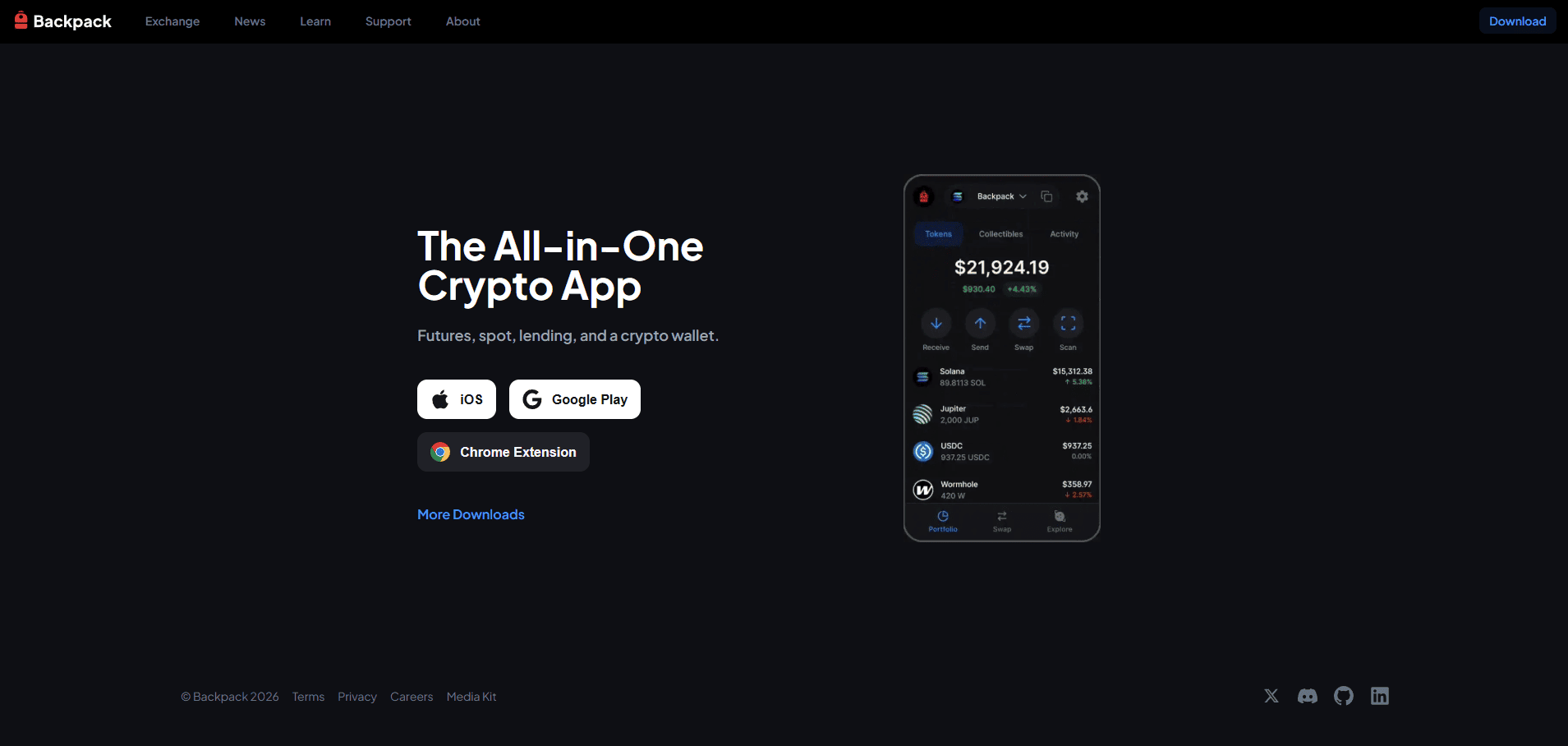
Backpack provides a mobile app and browser extension. The extension supports swaps, dApp connections and NFT viewing; the mobile app also presents trading and lending products. Its download page shows the current device options. Compare the wallet interface if you want a different way to navigate Solana apps.
Before moving: distinguish the self-custody wallet from the platform’s exchange services. They involve different account arrangements and risks. Test a small transfer and the dApps you use most before relying on the new interface.
Options for multiple networks or devices
If Phantom is only one part of your portfolio, compare the exact networks and devices you need instead of counting how many chains a provider advertises. Support for a chain does not guarantee support for every token, connection method or position.
Trust Wallet: Solana within a multi-network wallet
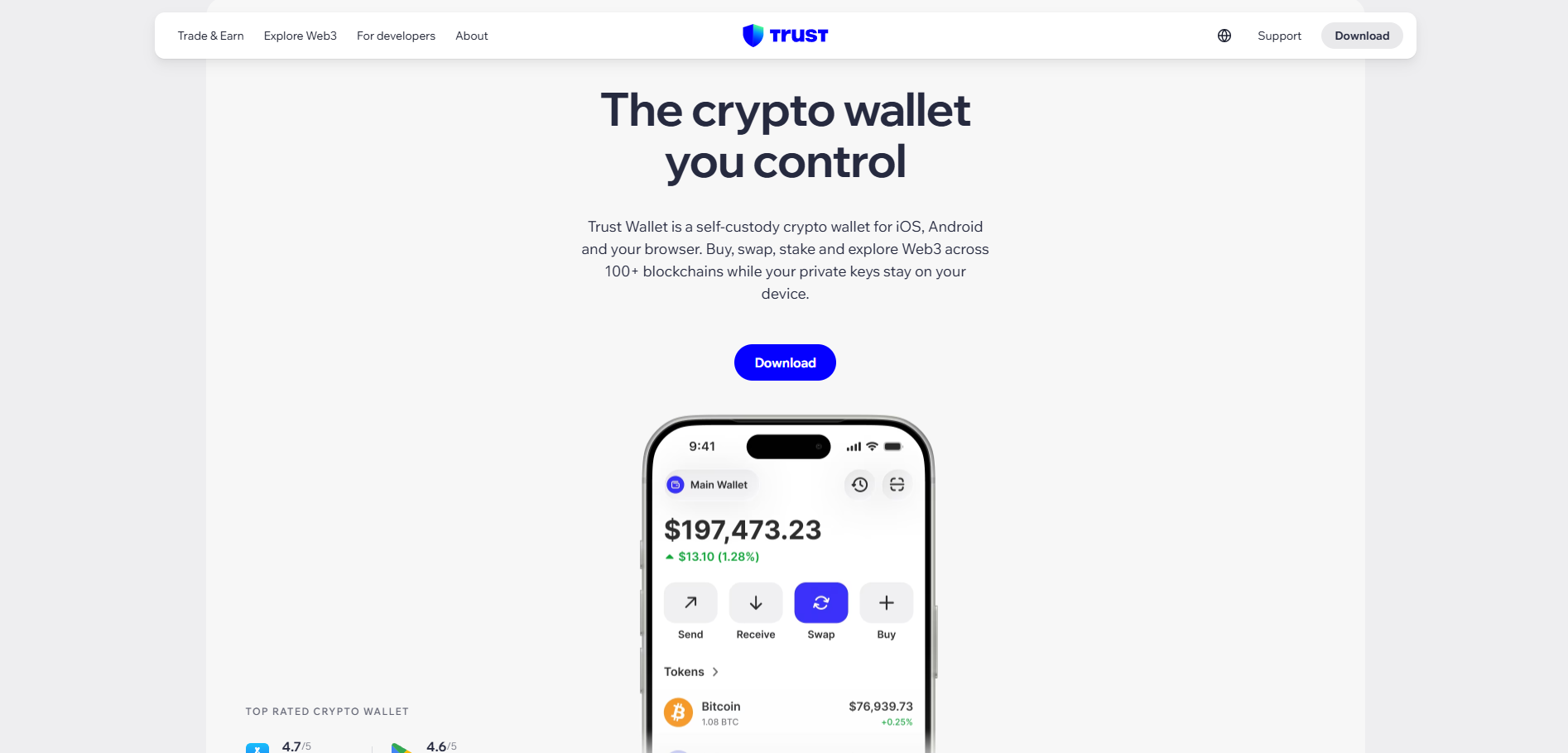
Trust Wallet supports Solana in its iOS and Android apps and browser extension, alongside assets on other networks. Its official Solana page describes self-custody, transfers and swaps. It may suit someone who wants to manage several ecosystems from one wallet rather than maintain a Solana-focused interface.
Before moving: verify your specific token, dApp connection and staking position, not simply the Solana logo in an asset list. Check the correct network when receiving a token and keep enough native currency for transaction fees.
Exodus: a desktop and mobile approach
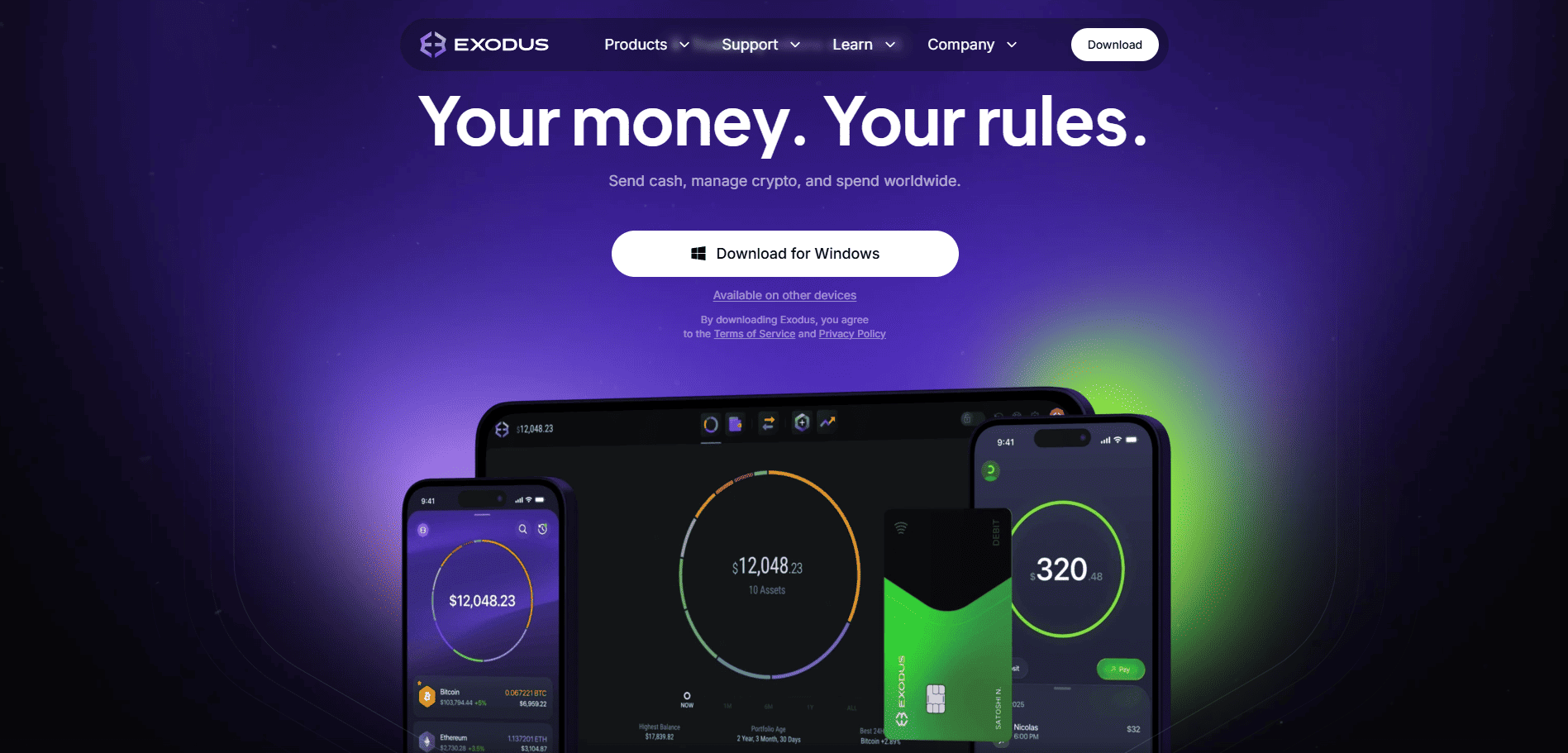
Exodus offers desktop and mobile applications. Its Solana wallet page documents sending, receiving and swapping SOL. This is a distinct choice for readers who prefer to manage assets in a desktop application as well as on their phones.
Before moving: displaying SOL does not mean every Solana dApp will work exactly as it does through Phantom’s extension. Test your key activities with a small balance. Review any swap quote and provider charges before confirming a transaction.
Hardware signing as a separate choice
SafePal: software and hardware in one product family
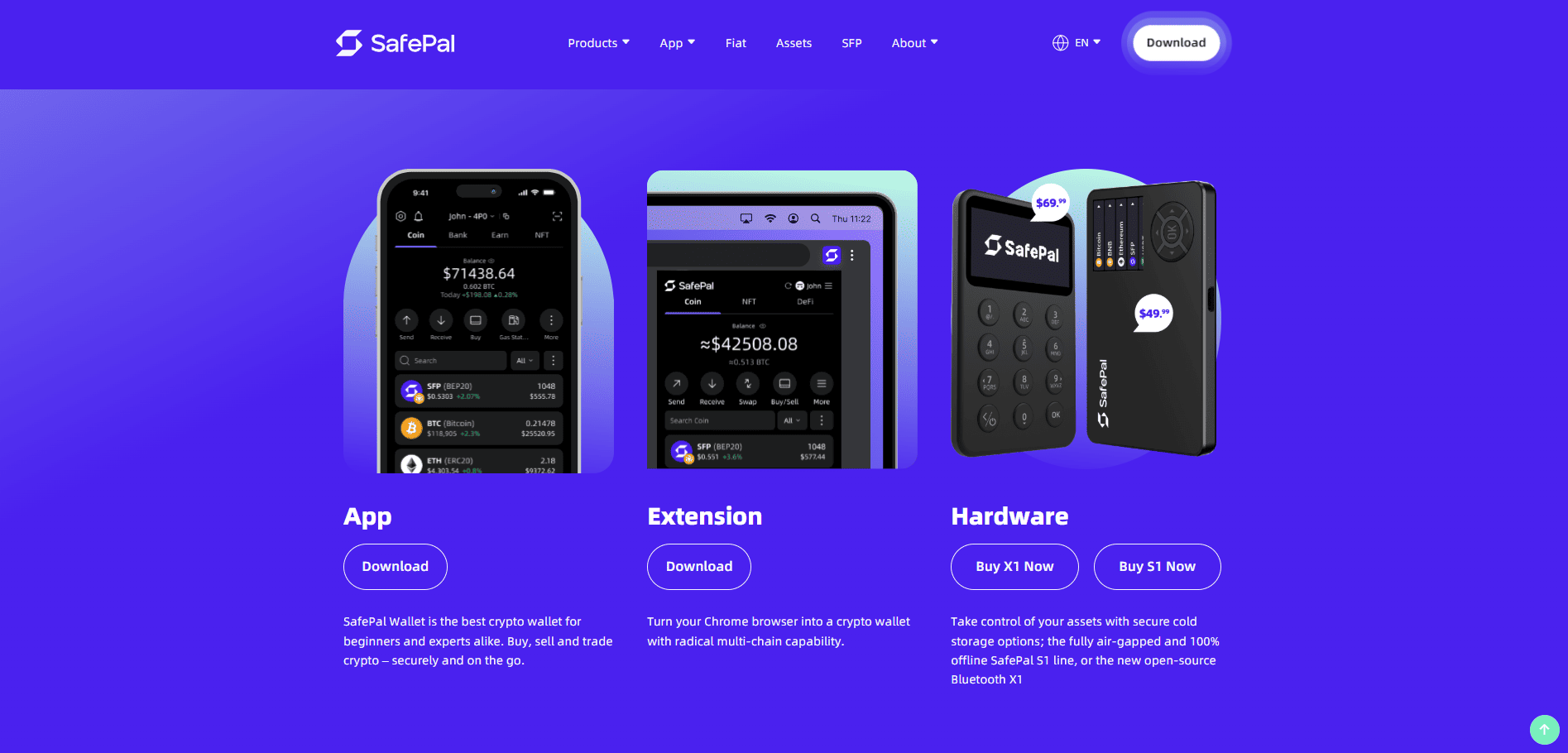
SafePal offers a mobile app, browser extension and separate hardware wallet models. The product overview describes these formats, while its asset directory includes Solana. It gives readers a way to compare an app with a physical signing device within one product family.
Before moving: confirm support for your assets and Solana dApps on the specific app or hardware model you plan to use. These products do not all offer identical functions, and hardware adds an upfront cost.
Ledger: hold signing keys on a physical device
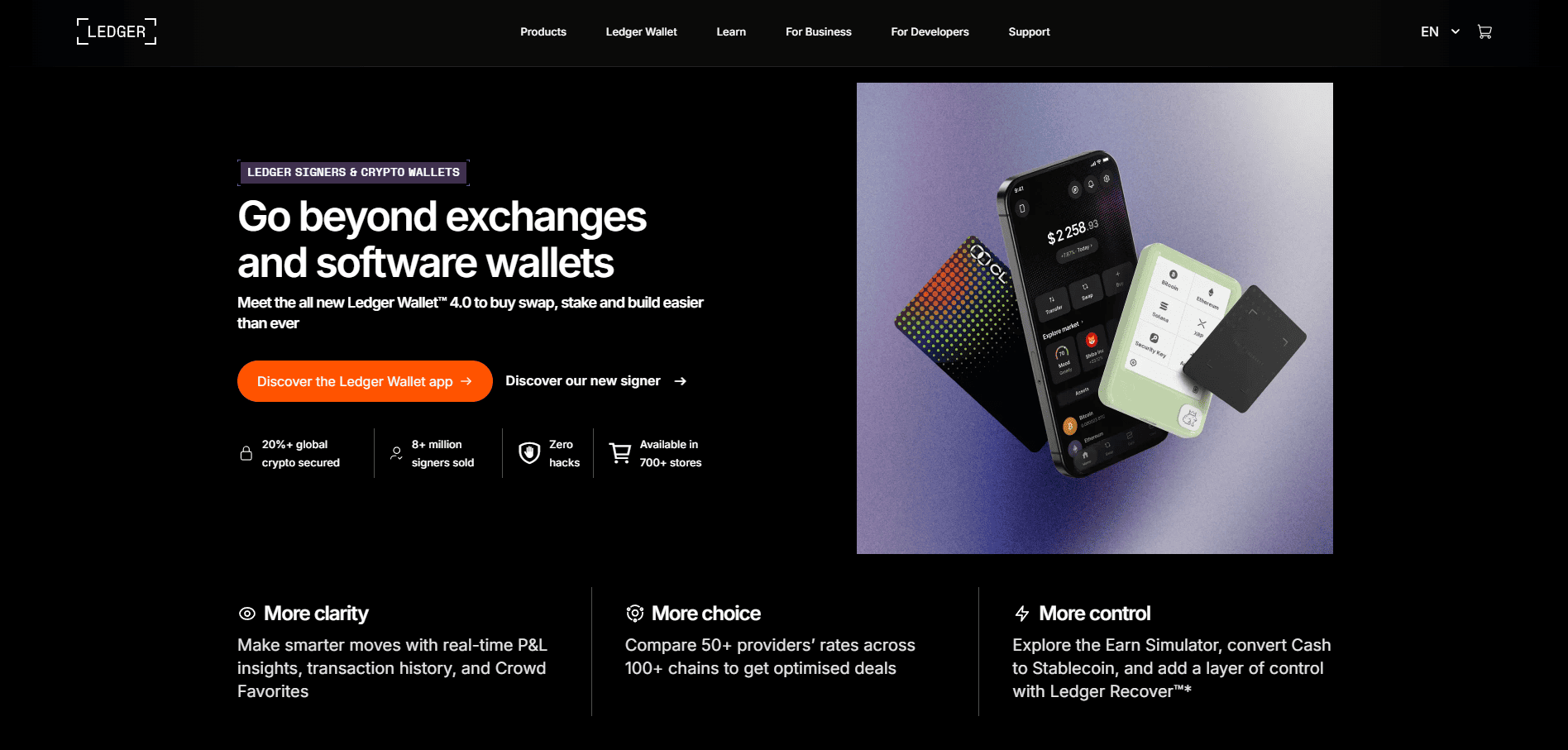
Ledger is a hardware signer rather than a direct like-for-like replacement for Phantom’s mobile app or extension. Its Solana page describes managing SOL with compatible software. You may use such a device with a companion wallet interface, including alongside Phantom, when you want to approve transactions on separate hardware.
Before moving: initialize a new hardware device with a new recovery phrase if your goal is new keys, then transfer assets to its new address. Importing a phrase that has already been used in a software wallet does not make its past exposure disappear. Check the device’s supported transactions and approve only what you recognize on its screen.
How to choose a wallet for your actual use
These four questions turn a feature list into a practical shortlist:
Which assets and networks must work? Inventory your SOL, tokens, NFTs and other chains. Verify each one on the product you intend to install.
Where do you use dApps? A browser extension, a phone app and a desktop application support different connection flows. Test your most important dApp before moving everything.
Do you want a new interface or new keys? Importing an account generally keeps its keys; a fresh wallet requires transfers. A hardware signer is a distinct decision about where keys are created and transactions are approved.
What does a transaction actually cost? Wallet downloads may be free while on-chain fees, swap routes, provider charges or hardware purchases still cost money. Compare a live quote for the operation you plan to make.
How to switch from Phantom without losing track of assets
Importing a compatible phrase or private key does not transfer crypto: it lets another app access the same on-chain account. To separate your funds from old keys, create a new wallet and send the assets to its new addresses. This distinction is especially important if a recovery phrase may have been exposed.
Record what you use. Note each chain, account, token, NFT and staking or DeFi position. An imported account and a new address may show different things.
Install from the official product page. Check the app or extension publisher. Keep recovery phrases offline; support staff and dApps do not need them.
Choose import or transfer. With import, confirm the address displayed by the new app. With fresh keys, send a small test amount on the correct network and verify receipt before moving the rest.
Recheck each position. Some staked or deposited assets need their own withdrawal or management steps. Reconnect dApps deliberately and keep your old interface available until you have accounted for everything.
Questions people ask before changing wallets
Can I use Phantom and another wallet at the same time?
Yes. You may use separate wallets with separate keys, or import one compatible account into two interfaces. In the second case, both apps can access the same account: deleting one app does not revoke the underlying key. Keep careful track of which account you connect to each dApp.
Will a new wallet show my staked SOL and NFTs?
If you import the same account, whether a position appears depends on the app and selected address. A new address does not inherit NFTs or staking positions. Verify each one before retiring the old interface; transferring or withdrawing a position may require separate steps.
Does a hardware wallet make every transaction safe?
No. Keeping signing keys on a separate device does not make a malicious transaction or wrong destination harmless. Read the details shown on the device, protect the recovery phrase, and check compatibility with the dApps you intend to use.
A useful starting point: compare Solflare, Jupiter Wallet and Backpack for Solana workflows; Trust Wallet, Exodus and SafePal for broader device or network needs; and Ledger if physical signing is the main change you want.